
1. Shell out $300+ on ebay for something that retailed for $60.
2. Build your own with a Raspberry Pi for 1/3 of the price!
Can you guess which one I'm going to recommend?
There are numerous reasons why building your own NES Classic is infinitely better:
- It's cheaper
- It's hackable out of the box without any bricking concerns
- Allows you to play games on virtually any retro system
The purchase list
Raspberry PI 3 Model B A1.2GHz 64-bit quad-core ARMv8 CPU, 1GB RAM
SanDisk Ultra 16GB Ultra Micro SDHC UHS-I/Class 10 Card with Adapter (SDSQUNC-016G-GN6MA)

8Bitdo Bluetooth Wireless Classic NES Controller

Raspberry Pi power supply (mini USB cable)
HDMI Cable (Let's be honest, you have a bunch of these laying around)
Naturally you can substitute the controller for any USB or Bluetooth one that you have lying around. But the 8Bitdo is arguably the best one on the market.
I have everything, what's next?
All that's required next is to install the Retropie software onto the SD card for the Pi. This is pretty simplistic, because once the software is on the SD card, you will simply be able to plug it into the SD slot on the Pi. Once plugged into the Pi, you will be greeted with an extremely user friendly UI. You'll configure the gamepad of your choice, setup wifi, and adjust things like the screen size.
You'll also need to get your hands on ROMs, which are the game files used on emulators. I won't go into much detail about how to obtain these, because unless you already own a physical copy of the game, chances are it's most likely illegal to download the game online. It's a bit of a grey area legally, but if by chance you do own copies of the games, I'd recommend Emuparadise, which is one of the best ROM sites online.
Once you've downloaded the ROMs, you'll be able to transfer them to the SDcard or onto a USB stick, which you can plug into the USB port of the Raspberry Pi. From this point, you'll be off to the races, reliving the glory days of the 90s.
If you wanted to take it to the next level, you could even go so far as to 3D print a custom NES case. There's a bunch of examples and links to cases here
Questions, comments, concerns? Let me know!

Due to the limitations of Raspberry Pi the super speed data lines of USB Type C were not implemented. Instead the PiCHUB is designed for USB 2.0 specifications with speeds up to 480MB/s depending on the devices attached to the hub.
Hardware
The PiCHUB plugs into a Raspberry Pi via 26/40 pin header. If you are powering your Pi from a standard USB micro adapter the PiCHUB will power up when the Type A USB jumper cable is plugged in from the Pi USB port to PiCHUB upstream Type A USB port. This will provide power to the development board but is limited by the Pi's USB fuse. Devices can be plugged into all 3 Type A ports and the Type C port using the type C adapter provided.
The 15W USB Type C charger can be plugged directly into the Type C port while the Pi is already powered up and will switch the development board over to Type C power providing up to 3A of power. Port control of the Type C USB port is accomplished via a python script which must be run at the time of Pi bootup. Communication is done through I2C.
The PSOC 4 or ATTiny85V microcontroller was added to provide additional interfaces for the Pi and can be programmed with a PSOC MiniProg3 or Atmel USB programmer which is not included in the perks. Header P7 will allow you to isolate the power to the microcontroller when programming. PSOC chips are versatile programmable SOC's with anlog and digital blocks providing solutions for many applications with integrated components. Backers can also choose the option of an Atmel ATTiny85V microcontroller instead of the PSOC 4 which has a large community development support.
Software
The USB Type C Port Control software is open source and will be available for download on Enutil Energy's GitHub page. You will be able to modify and add additional python script for your applications. The USB port control software should be run upon bootup or prior to using the PiCHUB as detection and negotiation of the USB Type C port is required for use as a Device port or Charging port interchangeably. This can be added into the rc.local file to run at bootup. Python-smbus library must be installed on your Pi in order for the I2C script to work.
Features of the Raspberry Pi PiCHUB hub include :
- Switch on the Fly USB Type C power 15W @ 5V
- Digital and Analog to the Microcontroller
- 1 Upstream, 3 Downstream and 1 Dual Role Type C Port
- I2C Communication from Pi to Microcontroller and Type C Port Controller
- Plugs directly into Rasp Pi A/B/B+/3/Zero with USB jumper cable
- 3.3V and 5V output connectors for external supply to devices
- USB power or device through one Dual Role Port (DRP)
- High Speed USB 480Mbits/s
- PSOC 4 ARM Cortex M0 16K Flash 16MHz
- Or ATTiny85V 8Bit 8K Flash
- 3.3” Wide x 2.2″ High
- Included Stackable Header 26/40 pin
- Plug in USB Type C devices to Communicate
To learn more about the new PiCHUB - USB Type C HUB for Raspberry Pi and PiZero do visit their Kickstarter page and make a pledge if you are interested. CAD $14,000 is required to take the new PiCHUB USB-C hub into production.

It lets you develop science and electronics experiments, demonstrations, and projects without getting too involved in the nitty-gritty details of electronics or computer programming. In other words it basically converts your Raspberry Pi into a portable science and electronics laboratory.
Features:
● 12 bit Analog Input/Output
● Digital I/O
● Time interval measurements
● Waveform Generation
● USB Powered
● GUI for 50 experiments
● Python Programmable
● Works as a Test Equipment
● 8.6 x 5.8 x 1.5 cm3, 60 gm.
● Open Hardware
expEYES is powered by an AVR ATmega16 MCU , running at 8 MHz. It uses FT232RL chip to communicate with the Raspberry Pi. expEYES is capable of acting as a four-channel oscilloscope with 12-bit analogue resolution, microsecond timing resolution and a 250 kHz sampling frequency. It also comes equipped with an built-in signal generator.
Interfacing with Raspberry Pi
First, update your system's package list by entering the following command in LXTerminal or from the command line:
sudo apt-get update
Next, run the following command
sudo apt-get install expeyes
ExpEYES has a number of dependencies that are required for it to run under Linux, as well as a number of other recommended libraries. To avoid any problems later, you can run the following command in order to make sure that they are all installed:
sudo apt-get install python python-expeyes python-imaging-tk python-tk grace tix python-numpy python-scipy python-pygrace
expEYES Hardware Availability
ExpEYES is currently available from the following firms:-
- Fab.to.Lab (Ships Internationally) (Cheapest Online)
- Pi-Supply (Ships Internationally)
7 segments can be driven using many different techniques in conjunction with software and hardware. Multiplexing is one of the most popular methods used to drive a 7 segment display when there are limited no of I/O pins.It uses the concept of POV(persistence of vision) where the human brain cannot detect the flickering of display when the refresh rate is very high(~50Hz).In this method the fundamental logic is to enable or disable the segment blocks at a very high speed at precise time slices.
 In case of Raspberry Pi there are limited no of I/O pins, hence we will use multiplexing. WiringPi is perfect for this job as it uses Arduino like code and the code executes at a higher priority. Display used in this example is of common cathode type.Make sure you have the right 7 segment display,else you will end up getting random segments turned on.For pin mapping check the code below:-
Compile the code as...
gcc -o display segment.c -L/usr/local/lib -lwiringPi
Now execute it...
sudo ./display

Code:-
#include <wiringPi.h>
#include <stdio.h>
#define DISPLAY_BRIGHTNESS  500
#define DIGIT_ON  HIGH
#define DIGIT_OFF  LOW
#define SEGMENT_ON  LOW
#define SEGMENT_OFF HIGH
int SEGMENT_1=7;
int SEGMENT_2=11;
int SEGMENT_3=13;
int SEGMENT_4=15;
int SEGMENT_A=3;
int SEGMENT_B=5;
int SEGMENT_C=18;
int SEGMENT_D=19;
int SEGMENT_E=23;
int SEGMENT_F=24;
int SEGMENT_G=25;
void display_number(int num)
{
  pinMode(SEGMENT_1,OUTPUT);
  pinMode(SEGMENT_2,OUTPUT);
  pinMode(SEGMENT_3,OUTPUT);
  pinMode(SEGMENT_4,OUTPUT);
  long start=millis();
  for(int i=4;i>0;i--)
  {
    switch(i)
    {
    case 1:
      digitalWrite(SEGMENT_1,DIGIT_ON);
      break;
    case 2:
      digitalWrite(SEGMENT_2,DIGIT_ON);
      break;
    case 3:
      digitalWrite(SEGMENT_3,DIGIT_ON);
      break;
    case 4:
      digitalWrite(SEGMENT_4,DIGIT_ON);
      break;
    }
    print_number(num%10);
    num/=10;
    delayMicroseconds(DISPLAY_BRIGHTNESS);
    print_number(10);
    digitalWrite(SEGMENT_1,DIGIT_OFF);
    digitalWrite(SEGMENT_2,DIGIT_OFF);
    digitalWrite(SEGMENT_3,DIGIT_OFF);
    digitalWrite(SEGMENT_4,DIGIT_OFF);
  }
  while((millis()-start)<10);
}
void print_number(int num)
{
  pinMode(SEGMENT_A,OUTPUT);
  pinMode(SEGMENT_B,OUTPUT);
  pinMode(SEGMENT_C,OUTPUT);
  pinMode(SEGMENT_D,OUTPUT);
  pinMode(SEGMENT_E,OUTPUT);
  pinMode(SEGMENT_F,OUTPUT);
  pinMode(SEGMENT_G,OUTPUT);
  switch(num)
  {
  case 0:
    digitalWrite(SEGMENT_A,SEGMENT_ON);
    digitalWrite(SEGMENT_B,SEGMENT_ON);
    digitalWrite(SEGMENT_C,SEGMENT_ON);
    digitalWrite(SEGMENT_D,SEGMENT_ON);
    digitalWrite(SEGMENT_E,SEGMENT_ON);
    digitalWrite(SEGMENT_F,SEGMENT_ON);
    digitalWrite(SEGMENT_G,SEGMENT_OFF);
    break;
  case 1:
    digitalWrite(SEGMENT_A,SEGMENT_OFF);
    digitalWrite(SEGMENT_B,SEGMENT_ON);
    digitalWrite(SEGMENT_C,SEGMENT_ON);
    digitalWrite(SEGMENT_D,SEGMENT_OFF);
    digitalWrite(SEGMENT_E,SEGMENT_OFF);
    digitalWrite(SEGMENT_F,SEGMENT_OFF);
    digitalWrite(SEGMENT_G,SEGMENT_OFF);
    break;
  case 2:
    digitalWrite(SEGMENT_A,SEGMENT_ON);
    digitalWrite(SEGMENT_B,SEGMENT_ON);
    digitalWrite(SEGMENT_C,SEGMENT_OFF);
    digitalWrite(SEGMENT_D,SEGMENT_ON);
    digitalWrite(SEGMENT_E,SEGMENT_ON);
    digitalWrite(SEGMENT_F,SEGMENT_OFF);
    digitalWrite(SEGMENT_G,SEGMENT_ON);
    break;
  case 3:
    digitalWrite(SEGMENT_A,SEGMENT_ON);
    digitalWrite(SEGMENT_B,SEGMENT_ON);
    digitalWrite(SEGMENT_C,SEGMENT_ON);
    digitalWrite(SEGMENT_D,SEGMENT_ON);
    digitalWrite(SEGMENT_E,SEGMENT_OFF);
    digitalWrite(SEGMENT_F,SEGMENT_OFF);
    digitalWrite(SEGMENT_G,SEGMENT_ON);
    break;
  case 4:
    digitalWrite(SEGMENT_A,SEGMENT_OFF);
    digitalWrite(SEGMENT_B,SEGMENT_ON);
    digitalWrite(SEGMENT_C,SEGMENT_ON);
    digitalWrite(SEGMENT_D,SEGMENT_OFF);
    digitalWrite(SEGMENT_E,SEGMENT_OFF);
    digitalWrite(SEGMENT_F,SEGMENT_ON);
    digitalWrite(SEGMENT_G,SEGMENT_ON);
    break;
  case 5:
    digitalWrite(SEGMENT_A,SEGMENT_ON);
    digitalWrite(SEGMENT_B,SEGMENT_OFF);
    digitalWrite(SEGMENT_C,SEGMENT_ON);
    digitalWrite(SEGMENT_D,SEGMENT_ON);
    digitalWrite(SEGMENT_E,SEGMENT_OFF);
    digitalWrite(SEGMENT_F,SEGMENT_ON);
    digitalWrite(SEGMENT_G,SEGMENT_ON);
    break;
  case 6:
    digitalWrite(SEGMENT_A,SEGMENT_ON);
    digitalWrite(SEGMENT_B,SEGMENT_OFF);
    digitalWrite(SEGMENT_C,SEGMENT_ON);
    digitalWrite(SEGMENT_D,SEGMENT_ON);
    digitalWrite(SEGMENT_E,SEGMENT_ON);
    digitalWrite(SEGMENT_F,SEGMENT_ON);
    digitalWrite(SEGMENT_G,SEGMENT_ON);
    break;
  case 7:
    digitalWrite(SEGMENT_A,SEGMENT_ON);
    digitalWrite(SEGMENT_B,SEGMENT_ON);
    digitalWrite(SEGMENT_C,SEGMENT_ON);
    digitalWrite(SEGMENT_D,SEGMENT_OFF);
    digitalWrite(SEGMENT_E,SEGMENT_OFF);
    digitalWrite(SEGMENT_F,SEGMENT_OFF);
    digitalWrite(SEGMENT_G,SEGMENT_OFF);
    break;
  case 8:
    digitalWrite(SEGMENT_A,SEGMENT_ON);
    digitalWrite(SEGMENT_B,SEGMENT_ON);
    digitalWrite(SEGMENT_C,SEGMENT_ON);
    digitalWrite(SEGMENT_D,SEGMENT_ON);
    digitalWrite(SEGMENT_E,SEGMENT_ON);
    digitalWrite(SEGMENT_F,SEGMENT_ON);
    digitalWrite(SEGMENT_G,SEGMENT_ON);
    break;
  case 9:
    digitalWrite(SEGMENT_A,SEGMENT_ON);
    digitalWrite(SEGMENT_B,SEGMENT_ON);
    digitalWrite(SEGMENT_C,SEGMENT_ON);
    digitalWrite(SEGMENT_D,SEGMENT_ON);
    digitalWrite(SEGMENT_E,SEGMENT_OFF);
    digitalWrite(SEGMENT_F,SEGMENT_ON);
    digitalWrite(SEGMENT_G,SEGMENT_ON);
    break;
  case 10:
    digitalWrite(SEGMENT_A,SEGMENT_OFF);
    digitalWrite(SEGMENT_B,SEGMENT_OFF);
    digitalWrite(SEGMENT_C,SEGMENT_OFF);
    digitalWrite(SEGMENT_D,SEGMENT_OFF);
    digitalWrite(SEGMENT_E,SEGMENT_OFF);
    digitalWrite(SEGMENT_F,SEGMENT_OFF);
    digitalWrite(SEGMENT_G,SEGMENT_OFF);
    break;
  }
}
int main(void)
{
 printf("7 Segment Multiplexing using Raspberry Pi\n") ;
 if(getuid()!=0) //wiringPi requires root privileges
 {
  printf("Error:wiringPi must be run as root.\n");
  return 1;
 }
 if(wiringPiSetup()==-1)
 {
  printf("Error:wiringPi setup failed!\n");
  return 1;
 }
 int counter=0;
 for(;;)
 {
  display_number(counter++);
                delay(1000);
  if(counter>9999)
   counter=0;
 }
  return 0;
}
Compile the code as...
gcc -o display segment.c -L/usr/local/lib -lwiringPi
Now execute it...
sudo ./display

Installing the Library:-
WiringPi is maintained under GIT for ease of change tracking.If you do not have GIT installed, then under any of the Debian releases, you can install it with-
sudo apt-get install git-core
To obtain WiringPi using GIT:
git clone git://git.drogon.net/wiringPi
If you have already used the clone operation for the first time, then
cd wiringPi
git pull origin
Will fetch an updated version then you can re-run the build script below.
To build/install there is a new simplified script:
cd wiringPi
./build
The new build script will compile and install it all for you - it does use the sudo command at one point, so you may wish to inspect the script before running it.
Example Code:-
This code uses both the hardware and software PWM functions.
//////---------------------------------------------------------------------------
////// Name:                   pwm.c
////// Compiled with:      gcc pwm.c -I/usr/local/include -L/usr/local/lib -lwiringPi -lpthread -o pwm
////// Schematic:              .------.
//////                         | o  o |
//////                     RPi | o  o |12
//////                         | o  o-|-----(->|)-----\/\/\/\--o GND
//////                         | o  o |11    LED1       220
//////                         | o  o-|-----(->|)-----\/\/\/\--o GND
//////                         | o  o |      LED2       220
//////                         | o  o-|
//////
////// Notes:
//////---------------------------------------------------------------------------
#include <stdio.h>
#include <stdlib.h>
#include <signal.h>
#include <wiringPi.h>
#include <softPwm.h>
void control_event(int sig);
int HARD_PWM_PIN=1; //Hardware PWM Pin(GPIO18-12)
int SOFT_PWM_PIN=0; //Software PWM Pin(GPIO0-11)
int DELAY_MS=10;
int main(void)
{
  (void)signal(SIGINT,control_event);
  (void)signal (SIGQUIT,control_event);
  printf("Hardware and software based PWM test on LED\n");
  if(getuid()!=0) //wiringPi requires root privileges
  {
    printf("Error:wiringPi must be run as root.\n");
    return 1;
  }
  if(wiringPiSetup()==-1)
  {
    printf("Error:wiringPi setup failed.\n");
    return 1;
  }
  pinMode(HARD_PWM_PIN,PWM_OUTPUT); //setup hardware pwm
  softPwmCreate(SOFT_PWM_PIN,0,100); //setup software pwm pin
  int up;
  int down;
  while(1)
  {
    for(up=1;up=5;down--)
    {
      pwmWrite(HARD_PWM_PIN,down);
      softPwmWrite(SOFT_PWM_PIN,down);
      delay(DELAY_MS*2);
    }
    delay(DELAY_MS*5);
  }
}
void control_event(int sig)
{
  printf("\b\bExiting...\n");
  pwmWrite(HARD_PWM_PIN,0);
  softPwmWrite(SOFT_PWM_PIN,0);
  delay(100); //wait a little for the pwm to finish write
  exit(0);
}
Limitations:-
To minimize CPU usage the minimum default pulse width is set to 100μs thereby generating a PWM of 100 Hz. Lowering the range can give you a higher frequency at an expense of resolution and vice versa. Delays less than 100μs will dramatically increase the CPU usage and controlling other pins would be impossible.However, within these limitations controlling an LED or Motor is quite practical.
One of the few things that separates the Pi from other SBC (Single Board Computer) is the ability to use the GPIO (General Purpose Input/Output) pins which can be set as HIGH or LOW to control any external devices. To get started with hardware equivalent of "Hello world", all you need is a female to male jumper wire along with an LED and a resistor. Make sure to check out the cool Starter Kit put together by CanaKit. It includes everything needed to get started using the GPIO port of the Raspberry Pi.
In this post pin 9 is used for GND and pin 11 for GPIO17. The LED was connected using a 470 ohm register in series with pin 9 and 11 to limit the current.
 Software Implementation:-
The fastest way to get started is to use python which comes pre-installed with all images. Download the RPi.GPIO library and copy the gz tar ball to the RPi wheezy raspbian. Open the terminal and navigate to the extracted folder containing the RPi.GPIO library. Then type: $ sudo python setup.py install to install the module. Imp: As the OS is multitasking and not Real-time unlike Arduino there may be jitters depending on CPU priority.
Based on the library I have written a simple code to turn ON and turn OFF the LED after a delay of 1 sec (1000ms) each.The LED blinks 50 times.

In this post pin 9 is used for GND and pin 11 for GPIO17. The LED was connected using a 470 ohm register in series with pin 9 and 11 to limit the current.

The fastest way to get started is to use python which comes pre-installed with all images. Download the RPi.GPIO library and copy the gz tar ball to the RPi wheezy raspbian. Open the terminal and navigate to the extracted folder containing the RPi.GPIO library. Then type: $ sudo python setup.py install to install the module. Imp: As the OS is multitasking and not Real-time unlike Arduino there may be jitters depending on CPU priority.
Based on the library I have written a simple code to turn ON and turn OFF the LED after a delay of 1 sec (1000ms) each.The LED blinks 50 times.
import RPi.GPIO as GPIO
import time
# blinking function
def blink(pin):
        GPIO.output(pin,GPIO.HIGH)
        time.sleep(1)
        GPIO.output(pin,GPIO.LOW)
        time.sleep(1)
        return
# to use Raspberry Pi board pin numbers
GPIO.setmode(GPIO.BOARD)
# set up GPIO output channel
GPIO.setup(11, GPIO.OUT)
# blink GPIO17 50 times
for i in range(0,50):
        blink(11)
GPIO.cleanup()

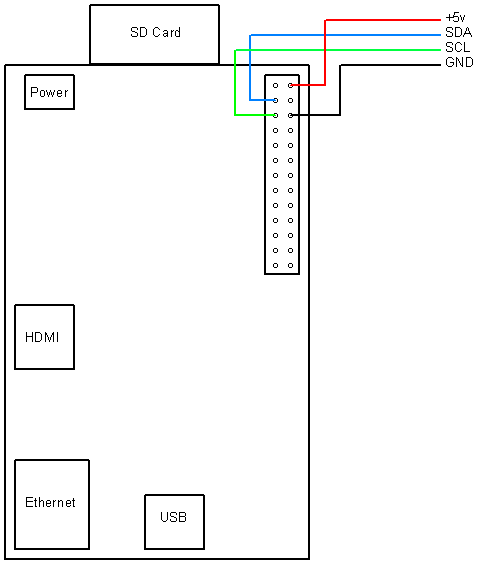
Hitachi HD44780 based 16x2 character LCD are very cheap and widely available, and is a essential part for any projects that displays information. Using the I2C bus on Raspberry Pi ,PCF8574 IC, and Python characters/strings can be displayed on the LCD. The PCF8574 is an general purpose bidirectional 8 bit I/O port expander that uses the I2C protocol.
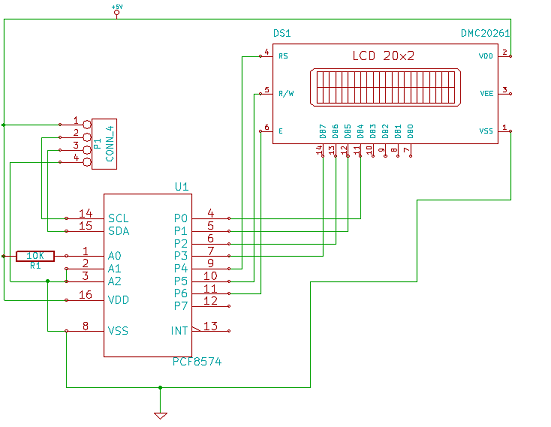
The LCD(HD44780) is connected in 4 bit mode as follows to the PCF8574:-
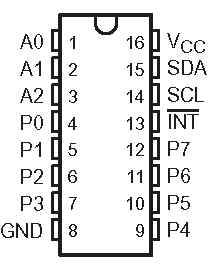
P0 - D4
P1 - D5
P2 - D6
P3 - D7
P4 - RS
P5 - R/W
P6 - E
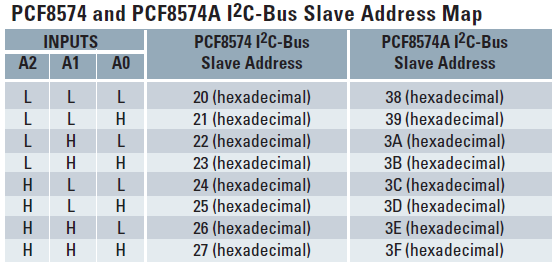
Port A0 is connected to VCC(5V) with a 10k resistor so that it will be addressed at 0x21.
import smbus
from time import *
# General i2c device class so that other devices can be added easily
class i2c_device:
 def __init__(self, addr, port):
  self.addr = addr
  self.bus = smbus.SMBus(port)
 def write(self, byte):
  self.bus.write_byte(self.addr, byte)
 def read(self):
  return self.bus.read_byte(self.addr)
 def read_nbytes_data(self, data, n): # For sequential reads > 1 byte
  return self.bus.read_i2c_block_data(self.addr, data, n)
class lcd:
 #initializes objects and lcd
 '''
 Reverse Codes:
 0: lower 4 bits of expander are commands bits
 1: top 4 bits of expander are commands bits AND P0-4 P1-5 P2-6
 2: top 4 bits of expander are commands bits AND P0-6 P1-5 P2-4
 '''
 def __init__(self, addr, port, reverse=0):
  self.reverse = reverse
  self.lcd_device = i2c_device(addr, port)
  if self.reverse:
   self.lcd_device.write(0x30)
   self.lcd_strobe()
   sleep(0.0005)
   self.lcd_strobe()
   sleep(0.0005)
   self.lcd_strobe()
   sleep(0.0005)
   self.lcd_device.write(0x20)
   self.lcd_strobe()
   sleep(0.0005)
  else:
   self.lcd_device.write(0x03)
   self.lcd_strobe()
   sleep(0.0005)
   self.lcd_strobe()
   sleep(0.0005)
   self.lcd_strobe()
   sleep(0.0005)
   self.lcd_device.write(0x02)
   self.lcd_strobe()
   sleep(0.0005)
  self.lcd_write(0x28)
  self.lcd_write(0x08)
  self.lcd_write(0x01)
  self.lcd_write(0x06)
  self.lcd_write(0x0C)
  self.lcd_write(0x0F)
 # clocks EN to latch command
 def lcd_strobe(self):
  if self.reverse == 1:
   self.lcd_device.write((self.lcd_device.read() | 0x04))
   self.lcd_device.write((self.lcd_device.read() & 0xFB))
  if self.reverse == 2:
   self.lcd_device.write((self.lcd_device.read() | 0x01))
   self.lcd_device.write((self.lcd_device.read() & 0xFE))
  else:
   self.lcd_device.write((self.lcd_device.read() | 0x10))
   self.lcd_device.write((self.lcd_device.read() & 0xEF))
 # write a command to lcd
 def lcd_write(self, cmd):
  if self.reverse:
   self.lcd_device.write((cmd >> 4)<<4 0x0f="" cmd="" else:="" self.lcd_device.write="" self.lcd_strobe="" x0="">> 4))
   self.lcd_strobe()
   self.lcd_device.write((cmd & 0x0F))
   self.lcd_strobe()
   self.lcd_device.write(0x0)
 # write a character to lcd (or character rom)
 def lcd_write_char(self, charvalue):
  if self.reverse == 1:
   self.lcd_device.write((0x01 | (charvalue >> 4)<<4 0x0f="" 2:="" charvalue="" if="" self.lcd_device.write="" self.lcd_strobe="" self.reverse="=" x01="" x04="" x0="">> 4)<<4 0x0f="" charvalue="" else:="" self.lcd_device.write="" self.lcd_strobe="" x04="" x0="" x40="">> 4)))
   self.lcd_strobe()
   self.lcd_device.write((0x40 | (charvalue & 0x0F)))
   self.lcd_strobe()
   self.lcd_device.write(0x0)
 # put char function
 def lcd_putc(self, char):
  self.lcd_write_char(ord(char))
 # put string function
 def lcd_puts(self, string, line):
  if line == 1:
   self.lcd_write(0x80)
  if line == 2:
   self.lcd_write(0xC0)
  if line == 3:
   self.lcd_write(0x94)
  if line == 4:
   self.lcd_write(0xD4)
  for char in string:
   self.lcd_putc(char)
 # clear lcd and set to home
 def lcd_clear(self):
  self.lcd_write(0x1)
  self.lcd_write(0x2)
 # add custom characters (0 - 7)
 def lcd_load_custon_chars(self, fontdata):
  self.lcd_device.bus.write(0x40);
  for char in fontdata:
   for line in char:
    self.lcd_write_char(line)
Main Program:-
import pylcdlib
lcd = pylcdlib.lcd(0x21,0)
lcd.lcd_puts("Raspberry Pi",1)  #display "Raspberry Pi" on line 1
lcd.lcd_puts("  Take a byte!",2)  #display "Take a byte!" on line 2
Save the above code as test_lcd.py and enter sudo python test_lcd.py
My code assumes that the first 4 bits of the LCD(11,12,13,14) are connected to P0,P1,P2,P3 ports on PCF8574. The next 3 ports on PCF8574(P4,P5,P6) should be connected to 4-RS, 5-R/W, 6-E.However there are other serial backpack lcd's with different pinouts. According to the wiring of your serial backpack LCD you can override the default mapping during initialization.There are 3 modes available-
lcd = pylcdlib.lcd(0x21,0) lower 4 bits of expander are commands bits
lcd = pylcdlib.lcd(0x21,0,1) top 4 bits of expander are commands bits AND P0-4 P1-5 P2-6
lcd = pylcdlib.lcd(0x21,0,2) top 4 bits of expander are commands bits AND P0-6 P1-5 P2-4
(Update):- If you have a Raspberry Pi with a revision 2.0 board, you need to use I²C bus 1, not bus 0, so you will need to change the bus number used. In this case, the line lcd = pylcdlib.lcd(0x21,0) would become lcd = pylcdlib.lcd(0x21,1).
You can check that the device is present on the bus by using the i2cdetect program from the i2ctools package-
i2cdetect 0 -y or i2cdetect 1 -y
Compatible LCD Module for this article:-
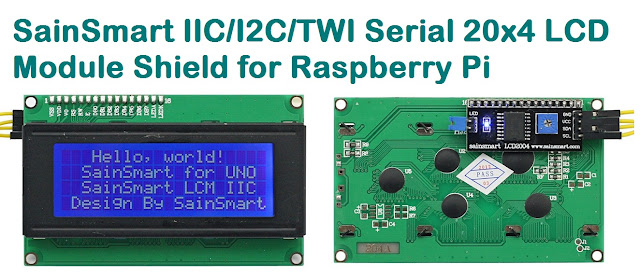

Raspberry Pi uses the Broadcom BCM2835 system-on-chip (SoC) processor which was originally developed to be used with applications that involved heavy graphics and multimedia handling. This led to the design of architecture that pairs a relatively weak and outdated CPU with a massively powerful graphics processor.The CPU instruction set is based on an outdated ARM v6 architecture.
Overclocking the Raspberry Pi is quite different from that of the desktop processors, where if you overclock it and crank up the voltage a few notch you can sustain a higher clock rate with increased power consumption.But the problem with Raspberry Pi is that it uses a mobile phone chip and over-volting can significantly lower the overall chip lifetime.
Even though, since launch Raspberry Pi supported over-volting and overclocking by modifying the "config.txt". The Raspberry Pi can be safely overclocked to 1 GHz without voiding the warranty. Over-volting is not recommended as it will permanently set a fuse in your SoC and void your warranty.
The latest version of the Raspbian operating system has inbuilt overclock method built into it.With the help of cpufreq driver it offers a “turbo mode”, which can dynamically overclock and over-volt the chip without voiding your warranty.To overclock enter "sudo raspi-config" in Terminal. Select "overclock" and reboot the system. This will enables dynamic overclocking. If your Raspberry Pi gets too hot(85°C) it will automatically drop back down to 700MHz.
In case the Pi fails to boot due to higher clock, hold the shift key to disable the overclock for that boot session. Link for default clock: http://elinux.org/RPi_config.txt#Overclocking_configuration. Also make sure that you have a decent quality power supply capable of handling the extra load due to overclocking.
The TMP102 is an I2C temperature sensor from Texas Instruments.It's a perfect sensor for Raspberry Pi as it lacks any onboard ADC and TMP102 eliminates the requirement for analyzing the analog signals.When compared with the analog sensors TMP102 is very accurate and capable of measuring 0.0625ºC changes between -25°C and +85°C.
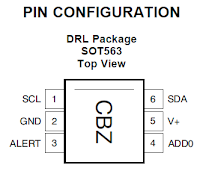
If you have more than one device on the I2C bus you can modify the address of the sensor using the address pin (ADD0).The sensor's address will be 72(0×48 in hex) when the address pin is grounded.It will be set to 73 (0×49 in hex) if the address pin is tied to VCC.
Pi GPI0 Function
---------------------------
Pin 2 SDA
Pin 3 SCL
Pin 26 5V
Make sure your system has the latest version of Linux 3.2 kernel and a proper I2C driver.Also you will be requiring two utilities:-
1) "lm-sensors" package, enter "apt-get install lm-sensors"
2) "I2C tools" package, enter "apt-get install i2c-tools"
After installation we can now use the modprobe i2c-tools.Run "i2cdetect" to check whether TMP102 is connected.
[email protected]:~# i2cdetect -y 0
0 1 2 3 4 5 6 7 8 9 a b c d e f
00: -- -- -- -- -- -- -- -- -- -- -- -- --
10: -- -- -- -- -- -- -- -- -- -- -- -- -- -- -- --
20: -- -- -- -- -- -- -- -- -- -- -- -- -- -- -- --
30: -- -- -- -- -- -- -- -- -- -- -- -- -- -- -- --
40: -- -- -- -- -- -- -- -- 48 -- -- -- -- -- -- --
50: -- -- -- -- -- -- -- -- -- -- -- -- -- -- -- --
60: -- -- -- -- -- -- -- -- -- -- -- -- -- -- -- --
70: -- -- -- -- -- -- -- --
As we have received the address from i2cdetect, the system has to be updated to get new drivers.
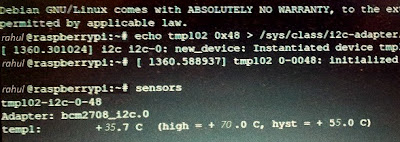
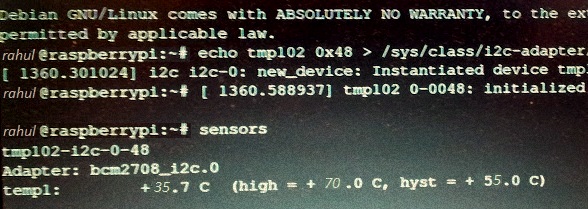
[email protected]:~# echo tmp102 0x48 > /sys/class/i2c-adapter/i2c-0/new_device
Run the "sensors" command to get the temperature:-
[email protected]:~# sensors
tmp102-i2c-0-48
Adapter: bcm2708_i2c.0
temp1: +35.7°C (high = +70.0°C, hyst = +55.0°C)
(Update):- If you have a Raspberry Pi with a revision 2.0 board, you need to use I²C bus 1, not bus 0.You can check that the device is present on the bus by using the i2cdetect program from the i2ctools package:-
i2cdetect 0 -y or i2cdetect 1 -y
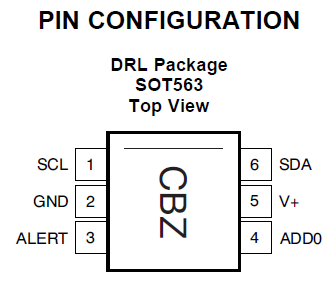
If you have more than one device on the I2C bus you can modify the address of the sensor using the address pin (ADD0).The sensor's address will be 72(0×48 in hex) when the address pin is grounded.It will be set to 73 (0×49 in hex) if the address pin is tied to VCC.
Pi GPI0 Function
---------------------------
Pin 2 SDA
Pin 3 SCL
Pin 26 5V
Make sure your system has the latest version of Linux 3.2 kernel and a proper I2C driver.Also you will be requiring two utilities:-
1) "lm-sensors" package, enter "apt-get install lm-sensors"
2) "I2C tools" package, enter "apt-get install i2c-tools"
After installation we can now use the modprobe i2c-tools.Run "i2cdetect" to check whether TMP102 is connected.
[email protected]:~# i2cdetect -y 0
0 1 2 3 4 5 6 7 8 9 a b c d e f
00: -- -- -- -- -- -- -- -- -- -- -- -- --
10: -- -- -- -- -- -- -- -- -- -- -- -- -- -- -- --
20: -- -- -- -- -- -- -- -- -- -- -- -- -- -- -- --
30: -- -- -- -- -- -- -- -- -- -- -- -- -- -- -- --
40: -- -- -- -- -- -- -- -- 48 -- -- -- -- -- -- --
50: -- -- -- -- -- -- -- -- -- -- -- -- -- -- -- --
60: -- -- -- -- -- -- -- -- -- -- -- -- -- -- -- --
70: -- -- -- -- -- -- -- --
As we have received the address from i2cdetect, the system has to be updated to get new drivers.
[email protected]:~# echo tmp102 0x48 > /sys/class/i2c-adapter/i2c-0/new_device
Run the "sensors" command to get the temperature:-
[email protected]:~# sensors
tmp102-i2c-0-48
Adapter: bcm2708_i2c.0
temp1: +35.7°C (high = +70.0°C, hyst = +55.0°C)
(Update):- If you have a Raspberry Pi with a revision 2.0 board, you need to use I²C bus 1, not bus 0.You can check that the device is present on the bus by using the i2cdetect program from the i2ctools package:-
i2cdetect 0 -y or i2cdetect 1 -y
