
Although its very simple but you still need to configure 2 files (config.txt & cmdline.txt). Editing the files can be done on Windows as the configuration files are located on the /boot partition, which is formatted FAT32 and readable on Windows/Mac/Linux.
Prerequisites:
1. 2016-05-10 release of Raspbian
2. SD Card
3. Standard Micro USB Cable
4. Windows: iTunes installed, Linux: Avahi Daemon installed
Setup:
Step 1: Step 1 is pretty obvious. You need to flash Raspbian onto the SD card. You can use win32diskimager for this.
Step 2: After flashing is complete, navigate to the boot partition. Open "config.txt" file and add "dtoverlay=dwc2" at the bottom of the file on a new line. Save the file and close it.

Step 3: Next open "cmdline.txt" file and add "modules-load=dwc2,g_ether" after rootwait. Make sure that there is a single space gap in between the parameters. Do not alter the format! . Save the file and close it.

Step 4: Boot your Pi Zero using the configured SD card. The first time you boot your Pi Zero connected to your your Windows machine, one of two things will happen. You'll either see a new RNDIS network device, or you won't. If the drivers are not installed it's will not work and will show a yellow exclamation mark on top of "USB Ethernet/RNDIS Gadget".

If you are on Windows 10 right-click on it and select "Update Driver Software"..., then "Browse my computer for driver software" and then "Let me pick from a list of device drivers on my computer" and finally choose "Remote NDIS Compatible Device". This should install the Microsoft RNDIS 5.1 driver (shows "Acer" as the manufacturer).

Step 5: If you have Bonjour Service running you should be able to SSH into you Pi Zero using raspberrypi.local as the address.

In this tutorial, I will demonstrate how to use the pi with remote GUI. It involves the following steps given below:-
1. Install VNC server on pi:
$ sudo apt-get install tightvncserver
2. Setup VNC client on remote system:
$ sudo apt-get install xtightvncviewer
3. Start VNC server on pi:
$ /user/bin/tightvncserver
4. Open VNC viewer on remote system:
$ xvncviewer 192.168.1.5:1

5. Kill VNC server
$ vncserver -kill :1
Download notes
Pi normally needs hardware support like keyboard, mouse, display( HDMI compatible monitors). But we can run pi without these hardware too, using another PC by SSH tunneling. Before getting started, we need to install ssh client in the system from which we are tunneling in to the pi. In Ubuntu (or other linux distros), we install ssh client as follows:
$ sudo apt-get install ssh
$ sudo apt-get install openssh-client
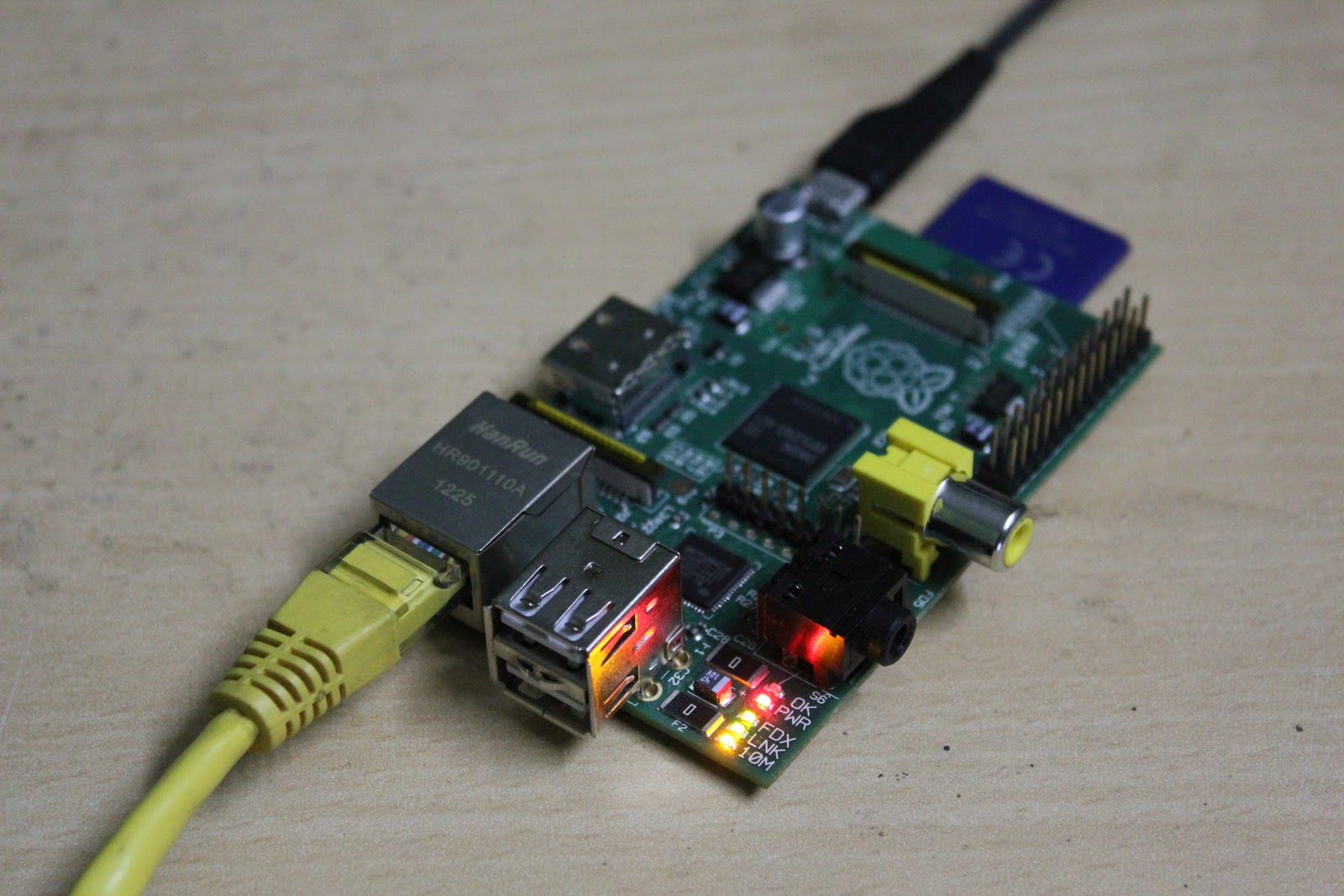
Default login for pi running Wheezy:
usrname: pi
passwd: raspberry
Follow the video below which explains what is SSH and how to log in to pi by SSH tunneling step by step:
Dowload notes/hints
Well the most easiest way to shut down any computer is by pulling the plug or to switch it off directly. As with most of the PCs they can be switched off forcibly even when the system has crashed by holding the power switch for 3 secs. But this method isn't quite healthy for your system as it can damage the HDD or BIOS. For the Raspberry Pi, it can cause problems or corrupt the SD card.
So now let’s talk about how to shut down your Raspberry Pi when it hasn't frozen.
sudo shutdown -h now (or sudo halt) [
-h means halt the system] [now means to shutdown immediately]You can also use the shorthand's:- `halt` and `reboot`.
Remember that you will need sudo privileges to use
shutdown (or halt)
When the shutdown command is entered it sends out a message to all logged in users
“The system is going down for system halt NOW!”
If you want to reebot your system simply replace the -h with -r
sudo shutdown -r now (or sudo reboot) [
-r means reboot the system] [now means to shutdown immediately]
Now for cases when your system is not responding or frozen,ssh comes in handy.By using a ssh client on another computer within the same network start an Xterm console window and enter the given commands..
sudo shutdown -h now (or sudo halt) OR
sudo shutdown -r now (or sudo reboot)
Your ssh session will terminate as the system is shutting down.
