 RSS
RSS Twitter
 Facebook
In this tutorial, I will demonstrate how to use the pi with remote GUI. It involves the following steps given below:-
1. Install VNC server on pi:
$ sudo apt-get install tightvncserver
2. Setup VNC client on remote system:
$ sudo apt-get install xtightvncviewer
3. Start VNC server on pi:
$ /user/bin/tightvncserver
4. Open VNC viewer on remote system:
$ xvncviewer 192.168.1.5:1

5. Kill VNC server
$ vncserver -kill :1
Download notes
In this tutorial, I will demonstrate the following:-

1. Login through ssh
2. Changing pi's password
3. Navigating through file-system
4. Copying files on network
5. Shutdown, Reboot pi
6. Writing, compiling a C program
Download Notes

1. Login through ssh
2. Changing pi's password
3. Navigating through file-system
4. Copying files on network
5. Shutdown, Reboot pi
6. Writing, compiling a C program
Download Notes
Pi normally needs hardware support like keyboard, mouse, display( HDMI compatible monitors). But we can run pi without these hardware too, using another PC by SSH tunneling. Before getting started, we need to install ssh client in the system from which we are tunneling in to the pi. In Ubuntu (or other linux distros), we install ssh client as follows:
$ sudo apt-get install ssh
$ sudo apt-get install openssh-client
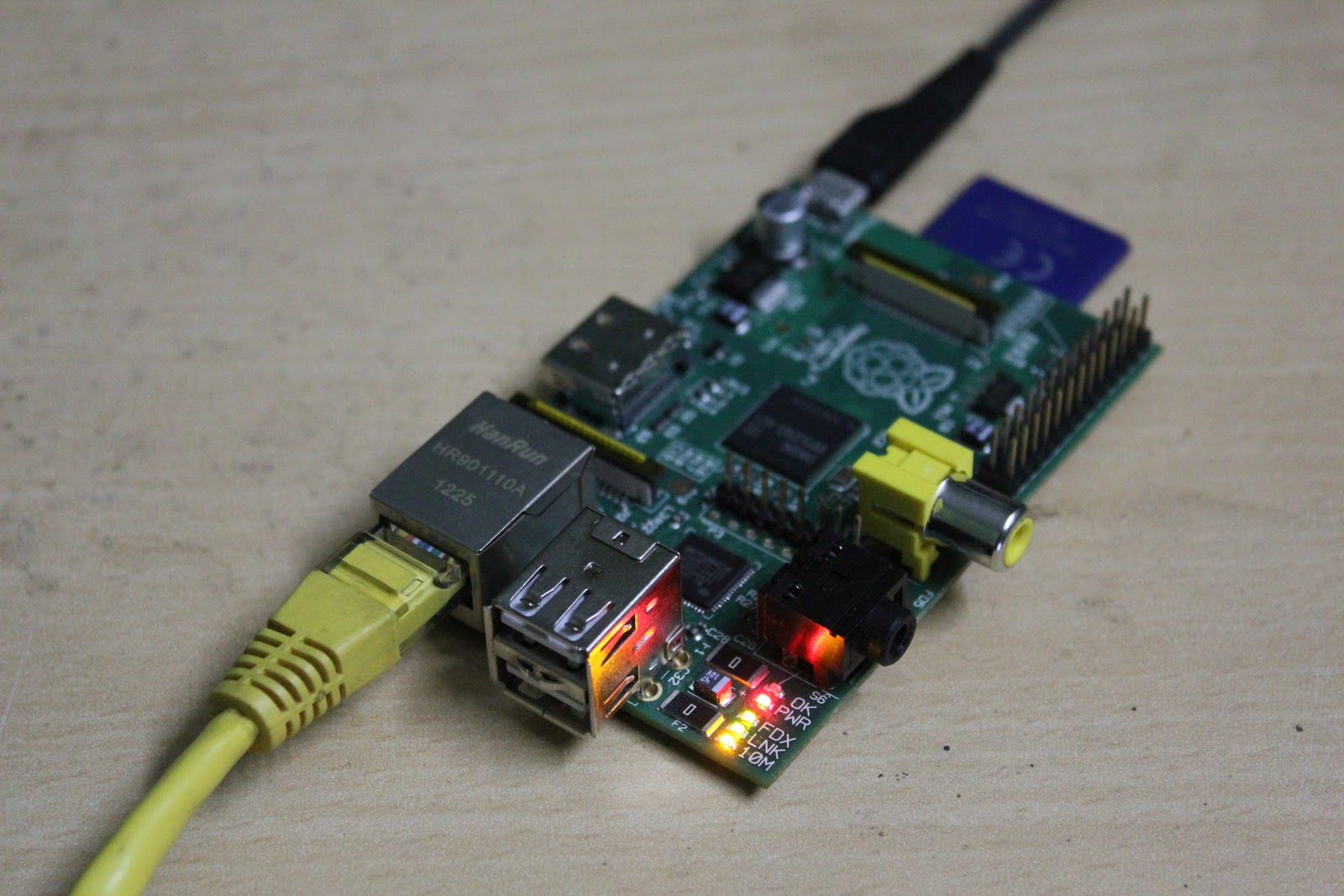
Default login for pi running Wheezy:
usrname: pi
passwd: raspberry
Follow the video below which explains what is SSH and how to log in to pi by SSH tunneling step by step:
Dowload notes/hints