Raspberry Pi requires a good power supply to function properly under full load conditions.It uses a micro B USB socket for drawing power which are used by many mobile phone chargers.It requires a DC power supply of 5V with a tolerance of +/- 0.25V and is capable of delivering atleast 0.7 Amps. Many of us get tempted to use the USB port on out PC, but that's not a good idea as USB ports can provide a maximum of 500 mA. Also you risk blowing the fuse of the USB port in your PC.(PC's and laptops uses a solid state poly-fuse which automatically resets after 2-3 hours of rest).To find out the best possible power supply for Pi, I performed a few tests:-
Testing at Full Power:-
For testing at full power I connected 1A power supply from my HTC mobile charger. In order to measure the voltage across the Raspberry Pi, two probing terminals- TP1 and TP2 are provided on the device.Next I used my DMM to get the readings without connecting any external load.As expected the reading was 5.12 V which is considered within the specified range.I was quite confident that using the same power supply the Pi could be powered with full load, seeing how as I have already done so to use the device.I got a reading of 4.96 V after attaching all the loads via USB Hub. Testing at Low Power:-
For testing at low power I used a 5 V 450 mA USB supply from my MP3 player charger.This is well below the specified 700 mA that Raspberry Pi requires to function properly.Still I went forward with the test and results were a little shocking to say the least.Without any external load the reading from DMM was 5.02!. As the voltage was within the specified tolerance of 0.25 V, I tested the voltage with full load, and the reading came out to be 4.88 V!. As anticipated,even with all the peripherals under full load the Pi booted successfully.But the joy lasted only for a brief moment.When I tried to use my keyboard and mouse they were not responding.
The final verdict? Well if you are planning to run the Raspberry Pi headless, you might be able to skimp on the current, but if you are planning on running a full fledged Linux box you should consider getting a decent power supply with a rating of 1A or greater.
7 segments can be driven using many different techniques in conjunction with software and hardware. Multiplexing is one of the most popular methods used to drive a 7 segment display when there are limited no of I/O pins.It uses the concept of POV(persistence of vision) where the human brain cannot detect the flickering of display when the refresh rate is very high(~50Hz).In this method the fundamental logic is to enable or disable the segment blocks at a very high speed at precise time slices.
In case of Raspberry Pi there are limited no of I/O pins, hence we will use multiplexing. WiringPi is perfect for this job as it uses Arduino like code and the code executes at a higher priority. Display used in this example is of common cathode type.Make sure you have the right 7 segment display,else you will end up getting random segments turned on.For pin mapping check the code below:-
Code:-
#include <wiringPi.h>
#include <stdio.h>
#define DISPLAY_BRIGHTNESS  500
#define DIGIT_ON  HIGH
#define DIGIT_OFF  LOW
#define SEGMENT_ON  LOW
#define SEGMENT_OFF HIGH
int SEGMENT_1=7;
int SEGMENT_2=11;
int SEGMENT_3=13;
int SEGMENT_4=15;
int SEGMENT_A=3;
int SEGMENT_B=5;
int SEGMENT_C=18;
int SEGMENT_D=19;
int SEGMENT_E=23;
int SEGMENT_F=24;
int SEGMENT_G=25;
void display_number(int num)
{
  pinMode(SEGMENT_1,OUTPUT);
  pinMode(SEGMENT_2,OUTPUT);
  pinMode(SEGMENT_3,OUTPUT);
  pinMode(SEGMENT_4,OUTPUT);
  long start=millis();
  for(int i=4;i>0;i--)
  {
    switch(i)
    {
    case 1:
      digitalWrite(SEGMENT_1,DIGIT_ON);
      break;
    case 2:
      digitalWrite(SEGMENT_2,DIGIT_ON);
      break;
    case 3:
      digitalWrite(SEGMENT_3,DIGIT_ON);
      break;
    case 4:
      digitalWrite(SEGMENT_4,DIGIT_ON);
      break;
    }
    print_number(num%10);
    num/=10;
    delayMicroseconds(DISPLAY_BRIGHTNESS);
    print_number(10);
    digitalWrite(SEGMENT_1,DIGIT_OFF);
    digitalWrite(SEGMENT_2,DIGIT_OFF);
    digitalWrite(SEGMENT_3,DIGIT_OFF);
    digitalWrite(SEGMENT_4,DIGIT_OFF);
  }
  while((millis()-start)<10);
}
void print_number(int num)
{
  pinMode(SEGMENT_A,OUTPUT);
  pinMode(SEGMENT_B,OUTPUT);
  pinMode(SEGMENT_C,OUTPUT);
  pinMode(SEGMENT_D,OUTPUT);
  pinMode(SEGMENT_E,OUTPUT);
  pinMode(SEGMENT_F,OUTPUT);
  pinMode(SEGMENT_G,OUTPUT);
  switch(num)
  {
  case 0:
    digitalWrite(SEGMENT_A,SEGMENT_ON);
    digitalWrite(SEGMENT_B,SEGMENT_ON);
    digitalWrite(SEGMENT_C,SEGMENT_ON);
    digitalWrite(SEGMENT_D,SEGMENT_ON);
    digitalWrite(SEGMENT_E,SEGMENT_ON);
    digitalWrite(SEGMENT_F,SEGMENT_ON);
    digitalWrite(SEGMENT_G,SEGMENT_OFF);
    break;
  case 1:
    digitalWrite(SEGMENT_A,SEGMENT_OFF);
    digitalWrite(SEGMENT_B,SEGMENT_ON);
    digitalWrite(SEGMENT_C,SEGMENT_ON);
    digitalWrite(SEGMENT_D,SEGMENT_OFF);
    digitalWrite(SEGMENT_E,SEGMENT_OFF);
    digitalWrite(SEGMENT_F,SEGMENT_OFF);
    digitalWrite(SEGMENT_G,SEGMENT_OFF);
    break;
  case 2:
    digitalWrite(SEGMENT_A,SEGMENT_ON);
    digitalWrite(SEGMENT_B,SEGMENT_ON);
    digitalWrite(SEGMENT_C,SEGMENT_OFF);
    digitalWrite(SEGMENT_D,SEGMENT_ON);
    digitalWrite(SEGMENT_E,SEGMENT_ON);
    digitalWrite(SEGMENT_F,SEGMENT_OFF);
    digitalWrite(SEGMENT_G,SEGMENT_ON);
    break;
  case 3:
    digitalWrite(SEGMENT_A,SEGMENT_ON);
    digitalWrite(SEGMENT_B,SEGMENT_ON);
    digitalWrite(SEGMENT_C,SEGMENT_ON);
    digitalWrite(SEGMENT_D,SEGMENT_ON);
    digitalWrite(SEGMENT_E,SEGMENT_OFF);
    digitalWrite(SEGMENT_F,SEGMENT_OFF);
    digitalWrite(SEGMENT_G,SEGMENT_ON);
    break;
  case 4:
    digitalWrite(SEGMENT_A,SEGMENT_OFF);
    digitalWrite(SEGMENT_B,SEGMENT_ON);
    digitalWrite(SEGMENT_C,SEGMENT_ON);
    digitalWrite(SEGMENT_D,SEGMENT_OFF);
    digitalWrite(SEGMENT_E,SEGMENT_OFF);
    digitalWrite(SEGMENT_F,SEGMENT_ON);
    digitalWrite(SEGMENT_G,SEGMENT_ON);
    break;
  case 5:
    digitalWrite(SEGMENT_A,SEGMENT_ON);
    digitalWrite(SEGMENT_B,SEGMENT_OFF);
    digitalWrite(SEGMENT_C,SEGMENT_ON);
    digitalWrite(SEGMENT_D,SEGMENT_ON);
    digitalWrite(SEGMENT_E,SEGMENT_OFF);
    digitalWrite(SEGMENT_F,SEGMENT_ON);
    digitalWrite(SEGMENT_G,SEGMENT_ON);
    break;
  case 6:
    digitalWrite(SEGMENT_A,SEGMENT_ON);
    digitalWrite(SEGMENT_B,SEGMENT_OFF);
    digitalWrite(SEGMENT_C,SEGMENT_ON);
    digitalWrite(SEGMENT_D,SEGMENT_ON);
    digitalWrite(SEGMENT_E,SEGMENT_ON);
    digitalWrite(SEGMENT_F,SEGMENT_ON);
    digitalWrite(SEGMENT_G,SEGMENT_ON);
    break;
  case 7:
    digitalWrite(SEGMENT_A,SEGMENT_ON);
    digitalWrite(SEGMENT_B,SEGMENT_ON);
    digitalWrite(SEGMENT_C,SEGMENT_ON);
    digitalWrite(SEGMENT_D,SEGMENT_OFF);
    digitalWrite(SEGMENT_E,SEGMENT_OFF);
    digitalWrite(SEGMENT_F,SEGMENT_OFF);
    digitalWrite(SEGMENT_G,SEGMENT_OFF);
    break;
  case 8:
    digitalWrite(SEGMENT_A,SEGMENT_ON);
    digitalWrite(SEGMENT_B,SEGMENT_ON);
    digitalWrite(SEGMENT_C,SEGMENT_ON);
    digitalWrite(SEGMENT_D,SEGMENT_ON);
    digitalWrite(SEGMENT_E,SEGMENT_ON);
    digitalWrite(SEGMENT_F,SEGMENT_ON);
    digitalWrite(SEGMENT_G,SEGMENT_ON);
    break;
  case 9:
    digitalWrite(SEGMENT_A,SEGMENT_ON);
    digitalWrite(SEGMENT_B,SEGMENT_ON);
    digitalWrite(SEGMENT_C,SEGMENT_ON);
    digitalWrite(SEGMENT_D,SEGMENT_ON);
    digitalWrite(SEGMENT_E,SEGMENT_OFF);
    digitalWrite(SEGMENT_F,SEGMENT_ON);
    digitalWrite(SEGMENT_G,SEGMENT_ON);
    break;
  case 10:
    digitalWrite(SEGMENT_A,SEGMENT_OFF);
    digitalWrite(SEGMENT_B,SEGMENT_OFF);
    digitalWrite(SEGMENT_C,SEGMENT_OFF);
    digitalWrite(SEGMENT_D,SEGMENT_OFF);
    digitalWrite(SEGMENT_E,SEGMENT_OFF);
    digitalWrite(SEGMENT_F,SEGMENT_OFF);
    digitalWrite(SEGMENT_G,SEGMENT_OFF);
    break;
  }
}
int main(void)
{
 printf("7 Segment Multiplexing using Raspberry Pi\n") ;
 if(getuid()!=0) //wiringPi requires root privileges
 {
  printf("Error:wiringPi must be run as root.\n");
  return 1;
 }
 if(wiringPiSetup()==-1)
 {
  printf("Error:wiringPi setup failed!\n");
  return 1;
 }
 int counter=0;
 for(;;)
 {
  display_number(counter++);
                delay(1000);
  if(counter>9999)
   counter=0;
 }
  return 0;
}
Compile the code as... gcc -o display segment.c -L/usr/local/lib -lwiringPi
Now execute it... sudo ./display
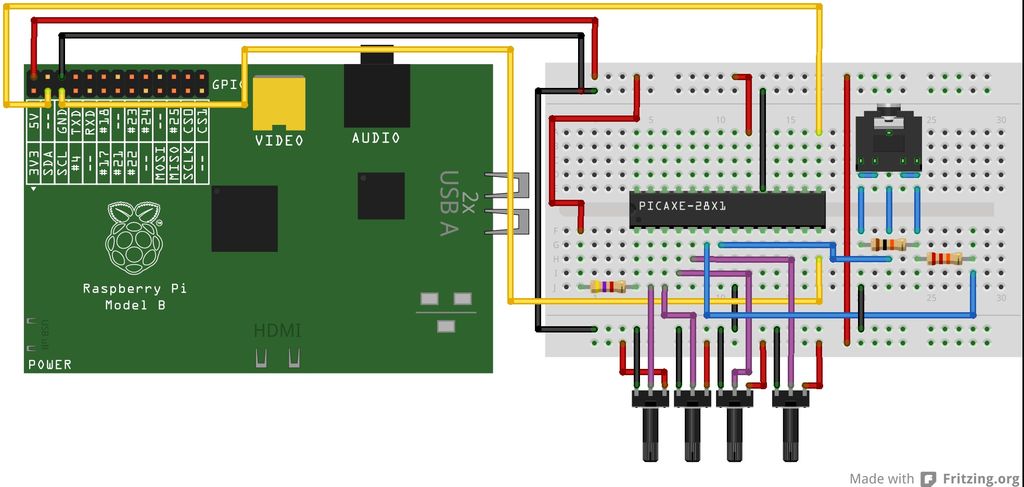
In this post I will demonstrate how you can utilize a modest PICAXE micro-controller as a multi channel ADC.We would be utilizing I2C bus to access the PICAXE, which will dump the values to memory registers.Your Pi must be configured to use the I2C bus.You can refer to this post for setting up I2C.
Very few PICAXEs can act as an I2C slave.One of them is 28X1. I have collected some fundamental information about PICAXEs, but in the event that you have never utilized one before, I suggest you to get basic knowledge about PICAXE's (Google is your friend ;) ).
You will require a minimum working circuit for PICAXe with power,reset and download socket to proceed.Here I am connecting 4 potentiometer with the ADC channel of PICAXE to demonstrate the working.
Code for PICAXE:-
You will need to download the below code into your PICAXE. Values from ADC is dumped into the micro-controller's scratchpad memory which can be accessed via I2C bus.
#no_data #no_table hi2csetup i2cslave, 100000 main: readadc 0,b1 readadc 1, b2 readadc 2, b3 readadc 3, b4 put 1, b1 put 2, b2 put 3, b3 put 4, b4 goto main
Code for Raspberry Pi:-
I have created a python script to access the PICAXE's scratchpad memory over I2C bus.It reads and displays the values.Save the script as read_adc.py.
With only one hardware PWM pin on Raspberry Pi it can be quite a problem with Arduino users like me.There are various hardware solutions available to overcome this problem.Many ADC(analog to digital converters) IC are available which can be interfaced via I2C bus.In this post I will be using WiringPi library which can bit-bang any GPIO pins and generate PWM signal. Even though the PWM signals are generated by individual threads with high priority using a real-time scheduler, there may be instances where it may get temporarily descheduled for a fraction of a second and cause jitters.
Installing the Library:-
WiringPi is maintained under GIT for ease of change tracking.If you do not have GIT installed, then under any of the Debian releases, you can install it with- sudo apt-get install git-core
To obtain WiringPi using GIT: git clone git://git.drogon.net/wiringPi
If you have already used the clone operation for the first time, then
cd wiringPi git pull origin
Will fetch an updated version then you can re-run the build script below.
To build/install there is a new simplified script: cd wiringPi ./build
The new build script will compile and install it all for you - it does use the sudo command at one point, so you may wish to inspect the script before running it.
Example Code:-
This code uses both the hardware and software PWM functions.
//////---------------------------------------------------------------------------
////// Name:                   pwm.c
////// Compiled with:      gcc pwm.c -I/usr/local/include -L/usr/local/lib -lwiringPi -lpthread -o pwm
////// Schematic:              .------.
//////                         | o  o |
//////                     RPi | o  o |12
//////                         | o  o-|-----(->|)-----\/\/\/\--o GND
//////                         | o  o |11    LED1       220
//////                         | o  o-|-----(->|)-----\/\/\/\--o GND
//////                         | o  o |      LED2       220
//////                         | o  o-|
//////
////// Notes:
//////---------------------------------------------------------------------------
#include <stdio.h>
#include <stdlib.h>
#include <signal.h>
#include <wiringPi.h>
#include <softPwm.h>
void control_event(int sig);
int HARD_PWM_PIN=1; //Hardware PWM Pin(GPIO18-12)
int SOFT_PWM_PIN=0; //Software PWM Pin(GPIO0-11)
int DELAY_MS=10;
int main(void)
{
  (void)signal(SIGINT,control_event);
  (void)signal (SIGQUIT,control_event);
  printf("Hardware and software based PWM test on LED\n");
  if(getuid()!=0) //wiringPi requires root privileges
  {
    printf("Error:wiringPi must be run as root.\n");
    return 1;
  }
  if(wiringPiSetup()==-1)
  {
    printf("Error:wiringPi setup failed.\n");
    return 1;
  }
  pinMode(HARD_PWM_PIN,PWM_OUTPUT); //setup hardware pwm
  softPwmCreate(SOFT_PWM_PIN,0,100); //setup software pwm pin
  int up;
  int down;
  while(1)
  {
    for(up=1;up=5;down--)
    {
      pwmWrite(HARD_PWM_PIN,down);
      softPwmWrite(SOFT_PWM_PIN,down);
      delay(DELAY_MS*2);
    }
    delay(DELAY_MS*5);
  }
}
void control_event(int sig)
{
  printf("\b\bExiting...\n");
  pwmWrite(HARD_PWM_PIN,0);
  softPwmWrite(SOFT_PWM_PIN,0);
  delay(100); //wait a little for the pwm to finish write
  exit(0);
}
Limitations:-
To minimize CPU usage the minimum default pulse width is set to 100μs thereby generating a PWM of 100 Hz. Lowering the range can give you a higher frequency at an expense of resolution and vice versa. Delays less than 100μs will dramatically increase the CPU usage and controlling other pins would be impossible.However, within these limitations controlling an LED or Motor is quite practical.
DHT11 is a 4 pin sensor which can measure temperatures ranging from 0-50°C & relative humidity ranging from 20-95%.The sensor uses its own proprietary 1-wire protocol to communicate with Raspberry Pi and runs from 3.3V-5V. The timings must be precise and according to the datasheet of the sensor.
Raspberry Pi initiates the data transmission process by pulling the data bus low for about 18 ms and keeps it HIGH for about 20-40 μs before releasing it.Subsequently, the sensor responds to the Pi's data transfer request by pulling the data bus LOW for 80 μs followed by 80 μs of HIGH.At this point Pi is ready to receive data from the sensor.Data is sent in packet of 40 bits (5 bytes) via the data line with the most significant bit at the beginning.
Data is transmitted in the following order:- Integer Part of Relative Humidity--->Decimal Part of Relative Humidity--->Integer Part of Temperature--->Decimal Part of Temperature---> Checksum. Checksum consists the last 8 bits of each part. Transmission of '0' & '1' is done by varying the width of the pulse.For transmitting '0' the data bus is held HIGH for 26-28μs, and 70μs for transmitting '1'.A delay of 50μs(LOW) is introduced before any new data bit is transmitted.After the transmission of last data-bit the data line is held LOW for 50μs and released.
Circuit:-
Holding the DHT11 towards you (the one with grid), the left pin is connected to VCC (pin 1).The data pin is next after VCC and is connected to pin 7.Next pin is NC(no connection).Finally the last pin is connected to GND(pin 25).To prevent random data connect a 10K resistor between data and VCC pin of DHT11.
Software:-
WiringPi which uses C like Arduino language is used to read the sensor value. WiringPi is maintained under GIT for ease of change tracking.If you do not have GIT installed, then under any of the Debian releases, you can install it with- sudo apt-get install git-core
To obtain WiringPi using GIT: git clone git://git.drogon.net/wiringPi
If you have already used the clone operation for the first time, then
cd wiringPi git pull origin
Will fetch an updated version then you can re-run the build script below.
To build/install there is a new simplified script: cd wiringPi ./build
Save the below code as temp_rh_sensor.c...
#include <wiringPi.h>
#include <stdio.h>
#include <stdlib.h>
#include <stdint.h>
#define MAX_TIME 85
#define DHT11PIN 7
int dht11_val[5]={0,0,0,0,0};
void dht11_read_val()
{
  uint8_t lststate=HIGH;
  uint8_t counter=0;
  uint8_t j=0,i;
  float farenheit;
  for(i=0;i<5;i++)
     dht11_val[i]=0;
  pinMode(DHT11PIN,OUTPUT);
  digitalWrite(DHT11PIN,LOW);
  delay(18);
  digitalWrite(DHT11PIN,HIGH);
  delayMicroseconds(40);
  pinMode(DHT11PIN,INPUT);
  for(i=0;i<MAX_TIME;i++)
  {
    counter=0;
    while(digitalRead(DHT11PIN)==lststate){
      counter++;
      delayMicroseconds(1);
      if(counter==255)
        break;
    }
    lststate=digitalRead(DHT11PIN);
    if(counter==255)
       break;
    // top 3 transistions are ignored
    if((i>=4)&&(i%2==0)){
      dht11_val[j/8]<<=1;
      if(counter>16)
        dht11_val[j/8]|=1;
      j++;
    }
  }
  // verify cheksum and print the verified data
  if((j>=40)&&(dht11_val[4]==((dht11_val[0]+dht11_val[1]+dht11_val[2]+dht11_val[3])& 0xFF)))
  {
    farenheit=dht11_val[2]*9./5.+32;
    printf("Humidity = %d.%d %% Temperature = %d.%d *C (%.1f *F)\n",dht11_val[0],dht11_val[1],dht11_val[2],dht11_val[3],farenheit);
  }
  else
    printf("Invalid Data!!\n");
}
int main(void)
{
  printf("Interfacing Temperature and Humidity Sensor (DHT11) With Raspberry Pi\n");
  if(wiringPiSetup()==-1)
    exit(1);
  while(1)
  {
     dht11_read_val();
     delay(3000);
  }
  return 0;
}
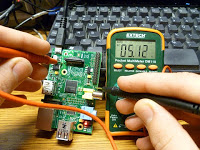 For testing at full power I connected 1A power supply from my HTC mobile charger. In order to measure the voltage across the Raspberry Pi, two probing terminals- TP1 and TP2 are provided on the device.Next I used my DMM to get the readings without connecting any external load.As expected the reading was 5.12 V which is considered within the specified range.I was quite confident that using the same power supply the Pi could be powered with full load, seeing how as I have already done so to use the device.I got a reading of 4.96 V after attaching all the loads via USB Hub.
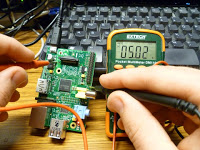 For testing at low power I used a 5 V 450 mA USB supply from my MP3 player charger.This is well below the specified 700 mA that Raspberry Pi requires to function properly.Still I went forward with the test and results were a little shocking to say the least.Without any external load the reading from DMM was 5.02!. As the voltage was within the specified tolerance of 0.25 V, I tested the voltage with full load, and the reading came out to be 4.88 V!. As anticipated,even with all the peripherals under full load the Pi booted successfully.But the joy lasted only for a brief moment.When I tried to use my keyboard and mouse they were not responding.