Interfacing a 16x2 LCD with Raspberry Pi

I2C and 16x2 LCD

Hitachi HD44780 based 16x2 character LCD are very cheap and widely available, and is a essential part for any  projects that displays information. Using the I2C bus on Raspberry Pi ,PCF8574 IC, and Python characters/strings can be displayed on the LCD. The PCF8574 is an general purpose bidirectional 8 bit I/O port expander that uses the I2C protocol.


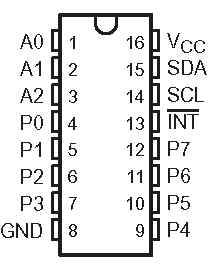
The LCD(HD44780) is connected in 4 bit mode as follows to the PCF8574:-
expandin I/O ports with PCF8574
            P0 - D4
              P1 - D5
              P2 - D6
              P3 - D7
              P4 - RS
              P5 - R/W
              P6 - E

Port A0 is connected to VCC(5V) with a 10k resistor so that it will be addressed at 0x21.
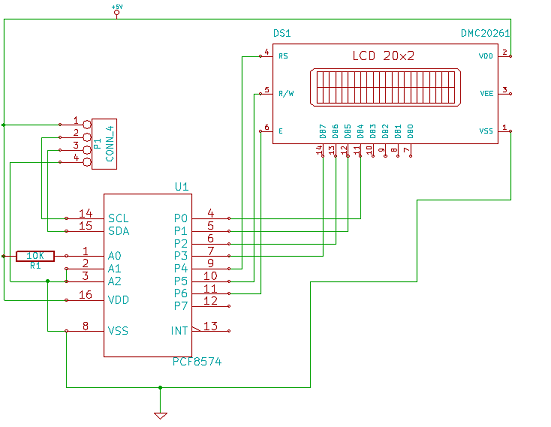
Connecting 16x2 LCD with PCF8574

Coming to the software part, Python is used to drive the logic.I have written a simple library to communicate with the LCD using the I2C bus.For this code to work python-smbus package must be installed(sudo apt-get install python-smbus).Save the below code as pylcdlib.py.
import smbus
from time import *
# General i2c device class so that other devices can be added easily
class i2c_dev:
 def __init__(self,addr,port):
  self.addr=addr
  self.bus=smbus.SMBus(port)
 def write(self,byte):
  self.bus.write_byte(self.addr,byte)
 def read(self):
  return self.bus.read_byte(self.addr)
 def read_nbytes_data(self,data,n): # For sequential reads>1 byte
  return self.bus.read_i2c_block_data(self.addr,data,n)
class lcd:
 #initializes objects and lcd
 def __init__(self,addr,port):
  self.lcd_device=i2c_device(addr,port)
  self.lcd_device.write(0x03)
  self.lcd_strobe()
  sleep(0.0005)
  self.lcd_strobe()
  sleep(0.0005)
  self.lcd_strobe()
  sleep(0.0005)
  self.lcd_device.write(0x02)
  self.lcd_strobe()
  sleep(0.0005)
  self.lcd_write(0x28)
  self.lcd_write(0x08)
  self.lcd_write(0x01)
  self.lcd_write(0x06)
  self.lcd_write(0x0C)
  self.lcd_write(0x0F)
 # clocks EN to latch command
 def lcd_strobe(self):
  self.lcd_device.write((self.lcd_device.read()|0x40))
  self.lcd_device.write((self.lcd_device.read()&0xbF))
 # write a command to lcd
 def lcd_write(self,cmd):
  self.lcd_device.write((cmd>>4))
  hi= self.lcd_device.read()
  self.lcd_strobe()
  self.lcd_device.write((cmd&0x0F))
  lo= self.lcd_device.read()
  self.lcd_strobe()
  self.lcd_device.write(0x0)
  print 'cmd',cmd,hi,lo
 # write a character to lcd (or character rom)
 def lcd_write_char(self,charvalue):
   print "char",charvalue
   self.lcd_device.write((0x10|(charvalue>>4)))
   self.lcd_strobe()
   self.lcd_device.write((0x10|(charvalue&0x0F)))
   self.lcd_strobe()
   self.lcd_device.write(0x0)
 # put char function
 def lcd_putc(self,char):
  self.lcd_write_char(ord(char))
 # put string function
 def lcd_puts(self, string,line):
  if line==1:
   self.lcd_write(0x10)
  if line==2:
   self.lcd_write(0xC0)
  if line==3:
   self.lcd_write(0x94)
  if line==4:
   self.lcd_write(0xD4)
  for char in string:
   self.lcd_putc(char)
 # clear lcd and set to home
 def lcd_clear(self):
  self.lcd_write(0x1)
  self.lcd_write(0x2)
 # add custom characters(0-7)
 def lcd_load_custon_chars(self,fontdata):
  self.lcd_device.bus.write(0x40);
  for char in fontdata:
   for line in char:
    self.lcd_write_char(line)
Main Program:-
import pylcdlib
lcd=pylcd2.lcd(0x21,0,2)
lcd.lcd_clear()
lcd.lcd_puts("Raspberry Pi",1) #display "Raspberry Pi" on line 1
lcd.lcd_puts("Hello World!",2) #display "Hello World!" on line 2
Read More »

Overclocking the Raspberry Pi


Raspberry Pi uses the Broadcom BCM2835 system-on-chip (SoC) processor which was originally developed to be used with applications that involved heavy graphics and multimedia handling. This led to the design of architecture that pairs a relatively weak and outdated CPU with a massively powerful graphics processor.The CPU instruction set is based on an outdated ARM v6  architecture.


Overclocking the Raspberry Pi is quite different from that of the desktop processors, where if you overclock it and crank up the voltage a few notch you can sustain a higher clock rate with increased power consumption.But the problem with Raspberry Pi is that it uses a mobile phone chip and over-volting can significantly lower the overall chip lifetime.


Even though, since launch Raspberry Pi supported over-volting and overclocking by modifying the "config.txt". The Raspberry Pi can be safely overclocked to 1 GHz without voiding the warranty. Over-volting  is not recommended as it will permanently set a fuse in your SoC and void your warranty.


The latest version of the Raspbian operating system has inbuilt overclock method built into it.With the help of cpufreq driver it offers a “turbo mode”, which can dynamically overclock and over-volt the chip without voiding your warranty.To overclock enter "sudo raspi-config"  in Terminal. Select "overclock" and reboot the system. This will enables dynamic overclocking. If your Raspberry Pi gets too hot(85°C) it will automatically drop back down to 700MHz.


In case the Pi fails to boot due to higher clock, hold the shift key to disable the overclock for that boot session. Link for default clock: http://elinux.org/RPi_config.txt#Overclocking_configuration. Also make sure that you have a decent quality power supply capable of handling the extra load due to overclocking.


Read More »

Raspberry Pi temperature sensor using TMP102

The TMP102 is an I2C temperature sensor from Texas Instruments.It's a perfect sensor for Raspberry Pi as it lacks any onboard ADC and TMP102 eliminates the requirement for analyzing the analog signals.When compared with the analog sensors TMP102 is very accurate and capable of measuring 0.0625ºC changes between -25°C and +85°C.

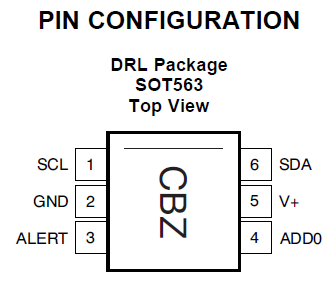
TMP102 pinout

If you have more than one device on the I2C bus you can modify the address of the sensor using the address pin (ADD0).The sensor's address will be 72(0×48 in hex) when the address pin is grounded.It will be set to 73 (0×49 in hex) if the address pin is tied to VCC.

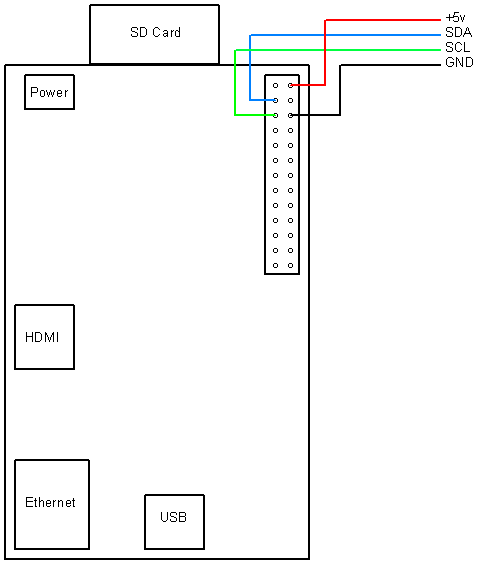
Pi GPI0        Function
---------------------------
Pin 2            SDA
Pin 3            SCL
Pin 26          5V  

Make sure your system has the latest version of Linux 3.2 kernel and a proper I2C driver.Also you will be requiring two utilities:-
1) "lm-sensors" package, enter "apt-get install lm-sensors"
2) "I2C tools" package, enter "apt-get install i2c-tools"

After installation we can now use the modprobe i2c-tools.Run "i2cdetect" to check whether TMP102 is connected.

root@raspberrypi:~# i2cdetect -y 0

     0  1  2  3  4  5  6  7  8  9  a  b  c  d  e  f
00:          -- -- -- -- -- -- -- -- -- -- -- -- --
10: -- -- -- -- -- -- -- -- -- -- -- -- -- -- -- --
20: -- -- -- -- -- -- -- -- -- -- -- -- -- -- -- --
30: -- -- -- -- -- -- -- -- -- -- -- -- -- -- -- --
40: -- -- -- -- -- -- -- -- 48 -- -- -- -- -- -- --
50: -- -- -- -- -- -- -- -- -- -- -- -- -- -- -- --
60: -- -- -- -- -- -- -- -- -- -- -- -- -- -- -- --
70: -- -- -- -- -- -- -- --


As we have received the address from i2cdetect, the system has to be updated to get new drivers.

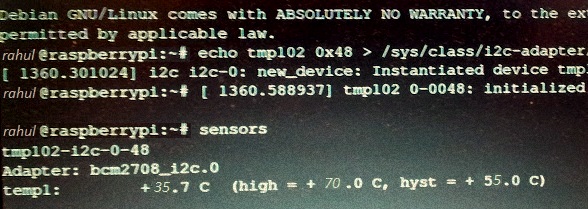
rahul@raspberrypi:~# echo tmp102 0x48 > /sys/class/i2c-adapter/i2c-0/new_device

Run the "sensors" command to get the temperature:-

rahul@raspberrypi:~# sensors
tmp102-i2c-0-48
Adapter: bcm2708_i2c.0
temp1:        +35.7°C  (high = +70.0°C, hyst = +55.0°C)


Read More »