Showing posts with label Hardware. Show all posts

Monday, December 31, 2012

on Leave a Comment

Interfacing MAX7219 with Raspberry Pi

The MAX7219 is extraordinary IC from Maxim which allows us to control many LEDs utilizing only a couple Raspberry Pi pin-outs. It removes all the hassles related with multiplexing, latching, refreshing common with 7 segments. Just by sending commands  via its SPI interfaceto the MAX7219 can control 64 LEDs or eight 7 segment displays.

Even though Rpi supports hardware SPI I couldn't get it to work with MAX7219. So I abandoned the SPI and connected 3 normal digital GPIO pins to the MAX7219 directly.I connected pin 1 (data), 12 (load) and 13 (clock) to the RPi GPIO pins 17, 23 and 22. Pins 4 and 9 to RPi Ground. Pin 19 to RPi’s 5V along with pin 18 via a resistor of your choice depending on your LED.


Now it was only a matter of sending commands to the MAX7219 via the data in, clock and load line.

For instance, to display the number 4 on digit 1 we would send the command 0×104 (0×01 : use digit 1, 0×04 : display the number 4). Which might look something like this :

Set LOAD to 1.
Send 16 bits command and data (0×104 = 0000000100000100), and for each binary digit we : set CLOCK to 0; send the binary digit, 0 or 1; set CLOCK to 1.
To finish, set LOAD to 0 then set LOAD to 1.

At this point it might be worth mentioning that the MAX7219 can work in two modes, BCD decode on or BCD off. With BCD on we can just send the number we want to appear on the 7 segment display to the MAX7219 and it will display it, as shown above. As well as digits 0 to 9, 10 to 15 correspond to -, E, H, L, P and ‘ ‘ / blank.

With BCD set to off we can control each segment directly. We’d use this mode if we were controlling a bunch of LEDs

bit  -  segment
0  -  g
1  -  f
2  -  e
3  -  d
4  -  c
5  -  b
6  -  a
7  -  dp

So binary 1110111, 0×77, would display a letter A on a 7 segment display.

Below is the code for MAX7219, using Gordon’s excellent wiringPi library to control the GPIO pins :-

/*
 max7219.c
 to compile : gcc max7219.c -o max7219 -lwiringPi
*/
#include <wiringPi.h>
#include <stdio.h>
#include <stdlib.h>
#include <stdint.h>
// define our pins :
#define DATA        0 // GPIO 17 (WiringPi pin num 0)  header pin 11
#define CLOCK       3 // GPIO 22 (WiringPi pin num 3)   header pin 15
#define LOAD        4 // GPIO 23 (WiringPi pin num 4)   header pin 16
// The Max7219 Registers :
#define DECODE_MODE   0x09                       
#define INTENSITY     0x0a                        
#define SCAN_LIMIT    0x0b                        
#define SHUTDOWN      0x0c                        
#define DISPLAY_TEST  0x0f                         
static void Send16bits (unsigned short output)
{
  unsigned char i;
  for(i=16;i>0;i--) 
  {
    unsigned short mask=1<<(i-1); // calculate bitmask
    digitalWrite(CLOCK,0);  // set clock to 0
    // Send one bit on the data pin
    if (output & mask)   
      digitalWrite(DATA,1);          
    else                              
      digitalWrite(DATA,0);        
    digitalWrite(CLOCK,1);  // set clock to 1 	 
  }
}
// Take a reg numer and data and send to the max7219
static void MAX7219Send(unsigned char reg_number,unsigned char dataout)
{
  digitalWrite(LOAD,1);  // set LOAD 1 to start
  Send16bits((reg_number << 8) + dataout);   // send 16 bits ( reg number + dataout )
  digitalWrite(LOAD,0);  // LOAD 0 to latch
  digitalWrite(LOAD,1);  // set LOAD 1 to finish
}
int main(void)
{
  printf("\n\nRaspberry Pi Max7219 Test using WiringPi\n\n");
  if(wiringPiSetup()==-1) exit(1) ;
  //We need 3 output pins to control the Max7219: Data, Clock and Load
  pinMode(DATA,OUTPUT);  
  pinMode(CLOCK,OUTPUT);
  pinMode(LOAD,OUTPUT);  
  MAX7219Send(SCAN_LIMIT,7);     // set up to scan all eight digits
/* 
 BCD decode mode off : data bits correspond to the segments (A-G and DP) of the seven segment display.
 BCD mode on :  0 to 15 =  0 to 9, -, E, H, L, P, and ' '	
*/
  MAX7219Send(DECODE_MODE,1);   // Set BCD decode mode on
  MAX7219Send(DISPLAY_TEST,0);  // Disable test mode
  MAX7219Send(INTENSITY,1);     // set brightness 0 to 15	
  MAX7219Send(SHUTDOWN,1);      // come out of shutdown mode
  MAX7219Send(1,6); 		 // displays the number 6 on digit 1
  return 0;
}

Wednesday, November 14, 2012

on Leave a Comment

7 Segment Multiplexing With Raspberry Pi

7 segments can be driven using many different techniques in conjunction with software and hardware. Multiplexing is one of the most popular methods used to drive a 7 segment display when there are limited no of I/O pins.It uses the concept of POV(persistence of vision) where the human brain cannot detect the flickering of display when the refresh rate is very high(~50Hz).In this method the fundamental logic is to enable or disable the segment blocks at a very high speed at  precise time slices.


7 segment multiplexing with raspberry pi
 In case of Raspberry Pi there are limited no of I/O pins, hence we will use multiplexing. WiringPi is perfect for this job as it uses Arduino like code and the code executes at a higher priority. Display used in this example is of common cathode type.Make sure you have the right 7 segment display,else you will end up getting random segments turned on.For pin mapping check the code below:-


Code:-

#include <wiringPi.h>
#include <stdio.h>
#define DISPLAY_BRIGHTNESS  500
#define DIGIT_ON  HIGH
#define DIGIT_OFF  LOW
#define SEGMENT_ON  LOW
#define SEGMENT_OFF HIGH
int SEGMENT_1=7; 
int SEGMENT_2=11;
int SEGMENT_3=13;
int SEGMENT_4=15;
int SEGMENT_A=3; 
int SEGMENT_B=5; 
int SEGMENT_C=18; 
int SEGMENT_D=19; 
int SEGMENT_E=23; 
int SEGMENT_F=24; 
int SEGMENT_G=25; 
void display_number(int num)
{
  pinMode(SEGMENT_1,OUTPUT);
  pinMode(SEGMENT_2,OUTPUT);
  pinMode(SEGMENT_3,OUTPUT);
  pinMode(SEGMENT_4,OUTPUT);
  long start=millis();
  for(int i=4;i>0;i--)
  {
    switch(i)
    {
    case 1:
      digitalWrite(SEGMENT_1,DIGIT_ON);
      break;
    case 2:
      digitalWrite(SEGMENT_2,DIGIT_ON);
      break;
    case 3:
      digitalWrite(SEGMENT_3,DIGIT_ON);
      break;
    case 4:
      digitalWrite(SEGMENT_4,DIGIT_ON);
      break;
    }
    print_number(num%10);
    num/=10;
    delayMicroseconds(DISPLAY_BRIGHTNESS); 
    print_number(10); 
    digitalWrite(SEGMENT_1,DIGIT_OFF);
    digitalWrite(SEGMENT_2,DIGIT_OFF);
    digitalWrite(SEGMENT_3,DIGIT_OFF);
    digitalWrite(SEGMENT_4,DIGIT_OFF);
  }
  while((millis()-start)<10);
}
void print_number(int num)
{
  pinMode(SEGMENT_A,OUTPUT);
  pinMode(SEGMENT_B,OUTPUT);
  pinMode(SEGMENT_C,OUTPUT);
  pinMode(SEGMENT_D,OUTPUT);
  pinMode(SEGMENT_E,OUTPUT);
  pinMode(SEGMENT_F,OUTPUT);
  pinMode(SEGMENT_G,OUTPUT);
  switch(num)
  {
  case 0:
    digitalWrite(SEGMENT_A,SEGMENT_ON);
    digitalWrite(SEGMENT_B,SEGMENT_ON);
    digitalWrite(SEGMENT_C,SEGMENT_ON);
    digitalWrite(SEGMENT_D,SEGMENT_ON);
    digitalWrite(SEGMENT_E,SEGMENT_ON);
    digitalWrite(SEGMENT_F,SEGMENT_ON);
    digitalWrite(SEGMENT_G,SEGMENT_OFF);
    break;
  case 1:
    digitalWrite(SEGMENT_A,SEGMENT_OFF);
    digitalWrite(SEGMENT_B,SEGMENT_ON);
    digitalWrite(SEGMENT_C,SEGMENT_ON);
    digitalWrite(SEGMENT_D,SEGMENT_OFF);
    digitalWrite(SEGMENT_E,SEGMENT_OFF);
    digitalWrite(SEGMENT_F,SEGMENT_OFF);
    digitalWrite(SEGMENT_G,SEGMENT_OFF);
    break;
  case 2:
    digitalWrite(SEGMENT_A,SEGMENT_ON);
    digitalWrite(SEGMENT_B,SEGMENT_ON);
    digitalWrite(SEGMENT_C,SEGMENT_OFF);
    digitalWrite(SEGMENT_D,SEGMENT_ON);
    digitalWrite(SEGMENT_E,SEGMENT_ON);
    digitalWrite(SEGMENT_F,SEGMENT_OFF);
    digitalWrite(SEGMENT_G,SEGMENT_ON);
    break;
  case 3:
    digitalWrite(SEGMENT_A,SEGMENT_ON);
    digitalWrite(SEGMENT_B,SEGMENT_ON);
    digitalWrite(SEGMENT_C,SEGMENT_ON);
    digitalWrite(SEGMENT_D,SEGMENT_ON);
    digitalWrite(SEGMENT_E,SEGMENT_OFF);
    digitalWrite(SEGMENT_F,SEGMENT_OFF);
    digitalWrite(SEGMENT_G,SEGMENT_ON);
    break;
  case 4:
    digitalWrite(SEGMENT_A,SEGMENT_OFF);
    digitalWrite(SEGMENT_B,SEGMENT_ON);
    digitalWrite(SEGMENT_C,SEGMENT_ON);
    digitalWrite(SEGMENT_D,SEGMENT_OFF);
    digitalWrite(SEGMENT_E,SEGMENT_OFF);
    digitalWrite(SEGMENT_F,SEGMENT_ON);
    digitalWrite(SEGMENT_G,SEGMENT_ON);
    break;
  case 5:
    digitalWrite(SEGMENT_A,SEGMENT_ON);
    digitalWrite(SEGMENT_B,SEGMENT_OFF);
    digitalWrite(SEGMENT_C,SEGMENT_ON);
    digitalWrite(SEGMENT_D,SEGMENT_ON);
    digitalWrite(SEGMENT_E,SEGMENT_OFF);
    digitalWrite(SEGMENT_F,SEGMENT_ON);
    digitalWrite(SEGMENT_G,SEGMENT_ON);
    break;
  case 6:
    digitalWrite(SEGMENT_A,SEGMENT_ON);
    digitalWrite(SEGMENT_B,SEGMENT_OFF);
    digitalWrite(SEGMENT_C,SEGMENT_ON);
    digitalWrite(SEGMENT_D,SEGMENT_ON);
    digitalWrite(SEGMENT_E,SEGMENT_ON);
    digitalWrite(SEGMENT_F,SEGMENT_ON);
    digitalWrite(SEGMENT_G,SEGMENT_ON);
    break;
  case 7:
    digitalWrite(SEGMENT_A,SEGMENT_ON);
    digitalWrite(SEGMENT_B,SEGMENT_ON);
    digitalWrite(SEGMENT_C,SEGMENT_ON);
    digitalWrite(SEGMENT_D,SEGMENT_OFF);
    digitalWrite(SEGMENT_E,SEGMENT_OFF);
    digitalWrite(SEGMENT_F,SEGMENT_OFF);
    digitalWrite(SEGMENT_G,SEGMENT_OFF);
    break;
  case 8:
    digitalWrite(SEGMENT_A,SEGMENT_ON);
    digitalWrite(SEGMENT_B,SEGMENT_ON);
    digitalWrite(SEGMENT_C,SEGMENT_ON);
    digitalWrite(SEGMENT_D,SEGMENT_ON);
    digitalWrite(SEGMENT_E,SEGMENT_ON);
    digitalWrite(SEGMENT_F,SEGMENT_ON);
    digitalWrite(SEGMENT_G,SEGMENT_ON);
    break;
  case 9:
    digitalWrite(SEGMENT_A,SEGMENT_ON);
    digitalWrite(SEGMENT_B,SEGMENT_ON);
    digitalWrite(SEGMENT_C,SEGMENT_ON);
    digitalWrite(SEGMENT_D,SEGMENT_ON);
    digitalWrite(SEGMENT_E,SEGMENT_OFF);
    digitalWrite(SEGMENT_F,SEGMENT_ON);
    digitalWrite(SEGMENT_G,SEGMENT_ON);
    break;
  case 10:
    digitalWrite(SEGMENT_A,SEGMENT_OFF);
    digitalWrite(SEGMENT_B,SEGMENT_OFF);
    digitalWrite(SEGMENT_C,SEGMENT_OFF);
    digitalWrite(SEGMENT_D,SEGMENT_OFF);
    digitalWrite(SEGMENT_E,SEGMENT_OFF);
    digitalWrite(SEGMENT_F,SEGMENT_OFF);
    digitalWrite(SEGMENT_G,SEGMENT_OFF);
    break;
  }
}
int main(void)
{
 printf("7 Segment Multiplexing using Raspberry Pi\n") ;
 if(getuid()!=0) //wiringPi requires root privileges  
 {  
  printf("Error:wiringPi must be run as root.\n");  
  return 1;  
 }  
 if(wiringPiSetup()==-1)  
 {  
  printf("Error:wiringPi setup failed!\n");  
  return 1;  
 }
 int counter=0;
 for(;;)
 {
  display_number(counter++);
                delay(1000);
  if(counter>9999)
   counter=0;
 }
  return 0;
}

Compile the code as...
gcc -o display segment.c -L/usr/local/lib -lwiringPi 
 Now execute it...
 sudo ./display


Sunday, November 4, 2012

on Leave a Comment

PWM on Raspberry Pi

generating PWM on raspberry pi
With only one hardware PWM pin on Raspberry Pi it can be quite a problem with Arduino users like me.There are various hardware solutions available to overcome this problem.Many ADC(analog to digital converters) IC are available which can be interfaced via I2C bus.In this post I will be using WiringPi library which can bit-bang any GPIO pins and generate PWM signal. Even though the PWM signals are generated by individual threads with high priority using a real-time scheduler, there may be instances where it may get  temporarily descheduled for a fraction of a second and cause jitters.

Installing the Library:-
WiringPi is maintained under GIT for ease of change tracking.If you do not have GIT installed, then under any of the Debian releases, you can install it with-
sudo apt-get install git-core

To obtain WiringPi using GIT:
git clone git://git.drogon.net/wiringPi

If you have already used the clone operation for the first time, then

cd wiringPi
git pull origin
Will fetch an updated version then you can re-run the build script below.

To build/install there is a new simplified script:
cd wiringPi
./build

The new build script will compile and install it all for you - it does use the sudo command at one point, so you may wish to inspect the script before running it.

Example Code:-
This code uses both the hardware and software PWM functions.

//////---------------------------------------------------------------------------
////// Name:                   pwm.c
////// Compiled with:      gcc pwm.c -I/usr/local/include -L/usr/local/lib -lwiringPi -lpthread -o pwm
////// Schematic:              .------.
//////                         | o  o |
//////                     RPi | o  o |12
//////                         | o  o-|-----(->|)-----\/\/\/\--o GND
//////                         | o  o |11    LED1       220
//////                         | o  o-|-----(->|)-----\/\/\/\--o GND
//////                         | o  o |      LED2       220
//////                         | o  o-|
//////
////// Notes:
//////---------------------------------------------------------------------------
#include <stdio.h>
#include <stdlib.h>
#include <signal.h>
#include <wiringPi.h>
#include <softPwm.h>
void control_event(int sig);
int HARD_PWM_PIN=1; //Hardware PWM Pin(GPIO18-12)
int SOFT_PWM_PIN=0; //Software PWM Pin(GPIO0-11)
int DELAY_MS=10;
int main(void)
{
  (void)signal(SIGINT,control_event);
  (void)signal (SIGQUIT,control_event);
  printf("Hardware and software based PWM test on LED\n");
  if(getuid()!=0) //wiringPi requires root privileges
  {
    printf("Error:wiringPi must be run as root.\n");
    return 1;
  }
  if(wiringPiSetup()==-1)
  {
    printf("Error:wiringPi setup failed.\n");
    return 1;
  }
  pinMode(HARD_PWM_PIN,PWM_OUTPUT); //setup hardware pwm
  softPwmCreate(SOFT_PWM_PIN,0,100); //setup software pwm pin
  int up;
  int down;
  while(1)
  {
    for(up=1;up=5;down--)
    {
      pwmWrite(HARD_PWM_PIN,down);
      softPwmWrite(SOFT_PWM_PIN,down);
      delay(DELAY_MS*2);
    }
    delay(DELAY_MS*5);
  }
}
void control_event(int sig)
{
  printf("\b\bExiting...\n");
  pwmWrite(HARD_PWM_PIN,0);
  softPwmWrite(SOFT_PWM_PIN,0);
  delay(100); //wait a little for the pwm to finish write
  exit(0);
}
Limitations:- To minimize CPU usage the minimum default pulse width is set to 100μs thereby generating a PWM of 100 Hz. Lowering the range can give you a higher frequency at an expense of resolution and vice versa. Delays less than 100μs will dramatically increase the CPU usage and controlling other pins would be impossible.However, within these limitations controlling an LED or Motor is quite practical.

Thursday, November 1, 2012

on 4 comments

Interfacing Temperature and Humidity Sensor (DHT11) With Raspberry Pi

interfacing DHT11 with raspberry pi
DHT11 is a 4 pin sensor which can measure temperatures ranging from 0-50°C & relative humidity ranging from 20-95%.The sensor uses its own proprietary 1-wire protocol to communicate with Raspberry Pi and runs from 3.3V-5V. The timings must be precise and according to the datasheet of the sensor.

Raspberry Pi initiates the data transmission process by pulling the data bus low for about 18 ms and keeps it HIGH for about 20-40 μs before releasing it.Subsequently, the sensor responds to the Pi's data transfer request by  pulling the data bus LOW for 80 μs followed by 80 μs of HIGH.At this point Pi is ready to receive data from the sensor.Data is sent in packet of 40 bits (5 bytes) via the data line with the most significant bit at the beginning.

Data is transmitted in the following order:- Integer Part of Relative Humidity--->Decimal Part of Relative Humidity--->Integer Part of Temperature--->Decimal Part of Temperature---> Checksum. Checksum consists the last 8 bits of each part. Transmission of '0' & '1' is done by varying the width of the pulse.For transmitting '0' the data bus is held HIGH for 26-28μs, and 70μs for transmitting '1'.A delay of 50μs(LOW) is introduced before any new data bit is transmitted.After the transmission of last data-bit the data line is held LOW for 50μs and released.

DHT11 sensor timing states

Circuit:-

Holding the DHT11 towards you (the one with grid), the left pin is connected to VCC (pin 1).The data pin is next  after VCC and is connected to pin 7.Next pin is NC(no connection).Finally the last pin is connected to GND(pin 25).To prevent random data connect a 10K resistor between data and VCC pin of DHT11.

Software:-
WiringPi which uses C like Arduino language is used to read the sensor value. WiringPi is maintained under GIT for ease of change tracking.If you do not have GIT installed, then under any of the Debian releases, you can install it with-
sudo apt-get install git-core

To obtain WiringPi using GIT:
git clone git://git.drogon.net/wiringPi

If you have already used the clone operation for the first time, then

cd wiringPi
git pull origin
Will fetch an updated version then you can re-run the build script below.

To build/install there is a new simplified script:
cd wiringPi
./build

Save the below code as temp_rh_sensor.c...

#include <wiringPi.h>
#include <stdio.h>
#include <stdlib.h>
#include <stdint.h>
#define MAX_TIME 85
#define DHT11PIN 7
int dht11_val[5]={0,0,0,0,0};
void dht11_read_val()
{
  uint8_t lststate=HIGH;
  uint8_t counter=0;
  uint8_t j=0,i;
  float farenheit;
  for(i=0;i<5;i++)
     dht11_val[i]=0;
  pinMode(DHT11PIN,OUTPUT);
  digitalWrite(DHT11PIN,LOW);
  delay(18);
  digitalWrite(DHT11PIN,HIGH);
  delayMicroseconds(40);
  pinMode(DHT11PIN,INPUT);
  for(i=0;i<MAX_TIME;i++)
  {
    counter=0;
    while(digitalRead(DHT11PIN)==lststate){
      counter++;
      delayMicroseconds(1);
      if(counter==255)
        break;
    }
    lststate=digitalRead(DHT11PIN);
    if(counter==255)
       break;
    // top 3 transistions are ignored
    if((i>=4)&&(i%2==0)){
      dht11_val[j/8]<<=1;
      if(counter>16)
        dht11_val[j/8]|=1;
      j++;
    }
  }
  // verify cheksum and print the verified data
  if((j>=40)&&(dht11_val[4]==((dht11_val[0]+dht11_val[1]+dht11_val[2]+dht11_val[3])& 0xFF)))
  {
    farenheit=dht11_val[2]*9./5.+32;
    printf("Humidity = %d.%d %% Temperature = %d.%d *C (%.1f *F)\n",dht11_val[0],dht11_val[1],dht11_val[2],dht11_val[3],farenheit);
  }
  else
    printf("Invalid Data!!\n");
}
int main(void)
{
  printf("Interfacing Temperature and Humidity Sensor (DHT11) With Raspberry Pi\n");
  if(wiringPiSetup()==-1)
    exit(1);
  while(1)
  {
     dht11_read_val();
     delay(3000);
  }
  return 0;
}

Compile the code as...
gcc -o sensor temp_rh_sensor.c -L/usr/local/lib -lwiringPi

Now execute it...
sudo ./sensor

[ Humidity = 87.0 % Temperature = 32.2 *C (90.0 *F) ]

Wednesday, September 5, 2012

on 7 comments

Using GPIO on Raspberry Pi to blink an LED

One of the few things that separates the Pi from other SBC (Single Board Computer)  is the ability to use the GPIO (General Purpose Input/Output) pins which can be set as HIGH or LOW to control any external devices. All you need is a female to male jumper wire to get started. Here I have used a HDD IDE connector to get the job done.

In this post pin 9 is used for GND and pin 11 for GPIO17. The LED was connected using a 470 ohm register in series with pin 9 and 11 to limit the current.

GPIO of raspberry pi
Software Implementation:-

The fastest way to get started is to use python which comes pre-installed with all images. Download the RPi.GPIO library and copy the gz tar ball to the RPi wheezy raspbian. Open the terminal and navigate to the extracted folder containing the RPi.GPIO library. Then type:  $ sudo python setup.py install to install the module. Imp: As the OS is multitasking  and not Real-time unlike Arduino there may be jitters depending on CPU priority.

Based on the library I have written a simple code to turn ON and turn OFF the LED after a delay of 1 sec (1000ms) each.The LED blinks 50 times.
import RPi.GPIO as GPIO
import time
# blinking function
def blink(pin):
        GPIO.output(pin,GPIO.HIGH)
        time.sleep(1)
        GPIO.output(pin,GPIO.LOW)
        time.sleep(1)
        return
# to use Raspberry Pi board pin numbers
GPIO.setmode(GPIO.BOARD)
# set up GPIO output channel
GPIO.setup(11, GPIO.OUT)
# blink GPIO17 50 times
for i in range(0,50):
        blink(11)
GPIO.cleanup() 

led blinking with raspberry pi           

Saturday, July 21, 2012

on 20 comments

Interfacing a 16x2 LCD with Raspberry Pi

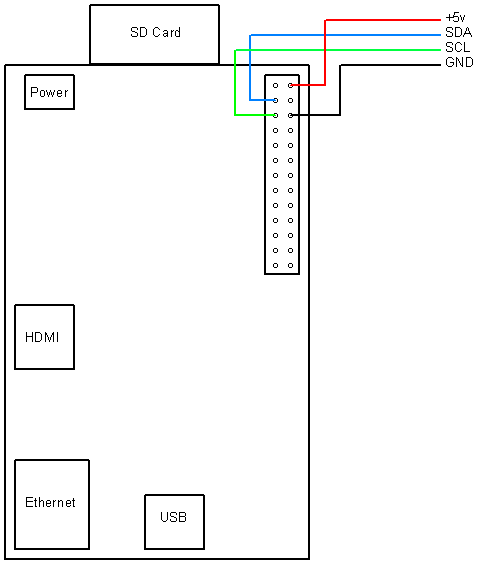
I2C and 16x2 LCD

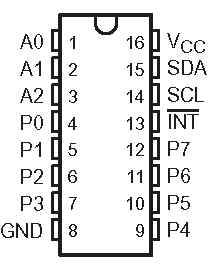
Hitachi HD44780 based 16x2 character LCD are very cheap and widely available, and is a essential part for any  projects that displays information. Using the I2C bus on Raspberry Pi ,PCF8574 IC, and Python characters/strings can be displayed on the LCD. The PCF8574 is an general purpose bidirectional 8 bit I/O port expander that uses the I2C protocol.


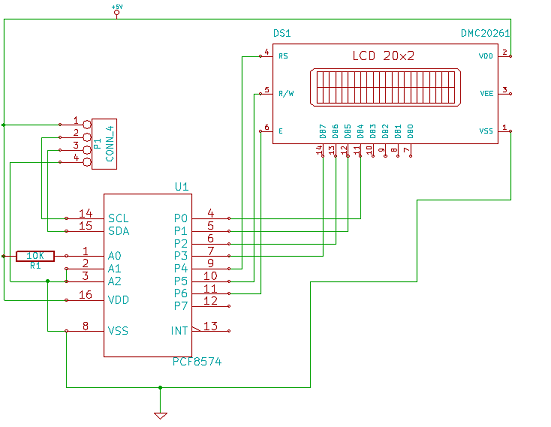
The LCD(HD44780) is connected in 4 bit mode as follows to the PCF8574:-

expandin I/O ports with PCF8574
              P0 - D4
              P1 - D5
              P2 - D6
              P3 - D7
              P4 - RS
              P5 - R/W
              P6 - E

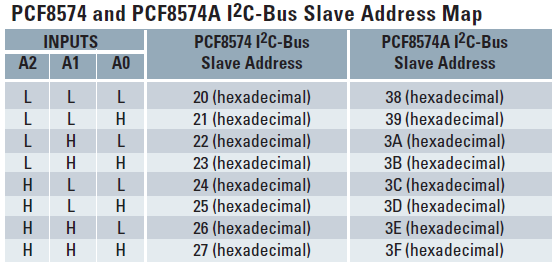
Port A0 is connected to VCC(5V) with a 10k resistor so that it will be addressed at 0x21.

Connecting 16x2 LCD with PCF8574

PCF8574 Slave Address Map


Coming to the software part, Python is used to drive the logic.I have written a simple library to communicate with the LCD using the I2C bus.For this code to work python-smbus package must be installed(sudo apt-get install python-smbus).Save the below code as pylcdlib.py

import smbus
from time import *
# General i2c device class so that other devices can be added easily
class i2c_device:
 def __init__(self, addr, port):
  self.addr = addr
  self.bus = smbus.SMBus(port)
 def write(self, byte):
  self.bus.write_byte(self.addr, byte)
 def read(self):
  return self.bus.read_byte(self.addr)
 def read_nbytes_data(self, data, n): # For sequential reads > 1 byte
  return self.bus.read_i2c_block_data(self.addr, data, n)
class lcd:
 #initializes objects and lcd
 '''
 Reverse Codes:
 0: lower 4 bits of expander are commands bits
 1: top 4 bits of expander are commands bits AND P0-4 P1-5 P2-6
 2: top 4 bits of expander are commands bits AND P0-6 P1-5 P2-4
 '''
 def __init__(self, addr, port, reverse=0):
  self.reverse = reverse
  self.lcd_device = i2c_device(addr, port)
  if self.reverse:
   self.lcd_device.write(0x30)
   self.lcd_strobe()
   sleep(0.0005)
   self.lcd_strobe()
   sleep(0.0005)
   self.lcd_strobe()
   sleep(0.0005)
   self.lcd_device.write(0x20)
   self.lcd_strobe()
   sleep(0.0005)
  else:
   self.lcd_device.write(0x03)
   self.lcd_strobe()
   sleep(0.0005)
   self.lcd_strobe()
   sleep(0.0005)
   self.lcd_strobe()
   sleep(0.0005)
   self.lcd_device.write(0x02)
   self.lcd_strobe()
   sleep(0.0005)
  self.lcd_write(0x28)
  self.lcd_write(0x08)
  self.lcd_write(0x01)
  self.lcd_write(0x06)
  self.lcd_write(0x0C)
  self.lcd_write(0x0F)
 # clocks EN to latch command
 def lcd_strobe(self):
  if self.reverse == 1:
   self.lcd_device.write((self.lcd_device.read() | 0x04))
   self.lcd_device.write((self.lcd_device.read() & 0xFB))
  if self.reverse == 2:
   self.lcd_device.write((self.lcd_device.read() | 0x01))
   self.lcd_device.write((self.lcd_device.read() & 0xFE))
  else:
   self.lcd_device.write((self.lcd_device.read() | 0x10))
   self.lcd_device.write((self.lcd_device.read() & 0xEF))
 # write a command to lcd
 def lcd_write(self, cmd):
  if self.reverse:
   self.lcd_device.write((cmd >> 4)<<4)
   self.lcd_strobe()
   self.lcd_device.write((cmd & 0x0F)<<4)
   self.lcd_strobe()
   self.lcd_device.write(0x0)
  else:
   self.lcd_device.write((cmd >> 4))
   self.lcd_strobe()
   self.lcd_device.write((cmd & 0x0F))
   self.lcd_strobe()
   self.lcd_device.write(0x0)
 # write a character to lcd (or character rom)
 def lcd_write_char(self, charvalue):
  if self.reverse == 1:
   self.lcd_device.write((0x01 | (charvalue >> 4)<<4))
   self.lcd_strobe()
   self.lcd_device.write((0x01 | (charvalue & 0x0F)<<4))
   self.lcd_strobe()
   self.lcd_device.write(0x0)
  if self.reverse == 2:
   self.lcd_device.write((0x04 | (charvalue >> 4)<<4))
   self.lcd_strobe()
   self.lcd_device.write((0x04 | (charvalue & 0x0F)<<4))
   self.lcd_strobe()
   self.lcd_device.write(0x0)
  else:
   self.lcd_device.write((0x40 | (charvalue >> 4)))
   self.lcd_strobe()
   self.lcd_device.write((0x40 | (charvalue & 0x0F)))
   self.lcd_strobe()
   self.lcd_device.write(0x0)
 # put char function
 def lcd_putc(self, char):
  self.lcd_write_char(ord(char))
 # put string function
 def lcd_puts(self, string, line):
  if line == 1:
   self.lcd_write(0x80)
  if line == 2:
   self.lcd_write(0xC0)
  if line == 3:
   self.lcd_write(0x94)
  if line == 4:
   self.lcd_write(0xD4)
  for char in string:
   self.lcd_putc(char)
 # clear lcd and set to home
 def lcd_clear(self):
  self.lcd_write(0x1)
  self.lcd_write(0x2)
 # add custom characters (0 - 7)
 def lcd_load_custon_chars(self, fontdata):
  self.lcd_device.bus.write(0x40);
  for char in fontdata:
   for line in char:
    self.lcd_write_char(line)
Main Program:-
import pylcdlib
lcd = pylcdlib.lcd(0x21,0)
lcd.lcd_puts("Raspberry Pi",1)  #display "Raspberry Pi" on line 1
lcd.lcd_puts("  Take a byte!",2)  #display "Take a byte!" on line 2

 Save the above code as test_lcd.py and enter sudo python test_lcd.py
My code assumes that the first 4 bits of the LCD(11,12,13,14) are connected to P0,P1,P2,P3 ports on PCF8574. The next 3 ports on PCF8574(P4,P5,P6) should be connected to 4-RS, 5-R/W, 6-E.However there are other serial backpack lcd's with different pinouts. According to the wiring of your serial backpack LCD you can override the default mapping during initialization.There are 3 modes available-
lcd = pylcdlib.lcd(0x21,0)   lower 4 bits of expander are commands bits
lcd = pylcdlib.lcd(0x21,0,1)   top 4 bits of expander are commands bits AND   P0-4   P1-5   P2-6
lcd = pylcdlib.lcd(0x21,0,2)   top 4 bits of expander are commands bits AND   P0-6   P1-5   P2-4

(Update):- If you have a Raspberry Pi with a revision 2.0 board, you need to use I²C bus 1, not bus 0, so you will need to change the bus number used. In this case, the line lcd = pylcdlib.lcd(0x21,0) would become lcd = pylcdlib.lcd(0x21,1). 

You can check that the device is present on the bus by using the i2cdetect program from the i2ctools package-
i2cdetect 0 -y  or i2cdetect 1 -y