Arduino vs Raspberry Pi

Ever since the Raspberry Pi was announced, it has been a topic of much debate online.Starting from radically different naming schemes- masculine Italian name vs sweet fruit pie- Arduino and Raspberry Pi boards are significantly different in a lot of things. For one Arduino is an Open Source single-board micro-controller,  while Raspberry Pi is a single-board computer.

Ask any electronics enthusiastic and he will tell you why it is always better to get the Arduino if this is your first time dabbing with electronics.On the other hand, if you have already dipped your toes in this field you could go ahead with the Raspberry Pi.

The table compares the two boards. It should help you make a good decision if you are new to this field.

Arduino
Raspberry Pi
Extremely easy to get working
Less easier to get working
A typical embedded system with easy-to-develop software
Complete computer running Linux
Support is available almost everywhere
Support is currently limited but should increase over time
Most suitable for controlling hardware(robotics)
Features an extremely powerful GPU and can handle HD content
Umpteen, different  kits and shield’s are available
Very few kits are available presently
Low power consumption, capable of even running micro amps with very low clock.
Comparatively higher power consumption than the Arduino

Verdict: While the Raspberry Pi is a great high-performance option, Arduino is a good general-purpose board.
Read More »

Using GPIO on Raspberry Pi to blink an LED

One of the things that separates the Pi from other SBC (Single Board Computer)  is the ability to use the GPIO (General Purpose Input/Output) pins to control any external devices. All you need is a female to male jumper wire to get started. Here I have used a HDD IDE connector to get the job done.

Pin 9 is used for GND and pin 11 for GPIO17. The LED was connected using a 470 ohm register between pin 9 and 11 to limit the current.

Software Implementation:-

The fastest way to get started is to use python which comes pre-installed with all images. Download the RPi.GPIO library and copy the gz tar ball to the RPi wheezy raspbian. Imp: As the OS is multitasking  and not Real-time unlike Arduino there may be jitters depending on CPU priority.

Based on the library I have written a simple code to turn ON and turn OFF the LED after a delay of 1 sec (1000ms) each.The LED blinks 50 times.
import RPi.GPIO as GPIO
import time
# blinking function
def blink(pin):
        GPIO.output(pin,GPIO.HIGH)
        time.sleep(1)
        GPIO.output(pin,GPIO.LOW)
        time.sleep(1)
        return
# to use Raspberry Pi board pin numbers
GPIO.setmode(GPIO.BOARD)
# set up GPIO output channel
GPIO.setup(11, GPIO.OUT)
# blink GPIO17 50 times
for i in range(0,50):
        blink(11)
GPIO.cleanup() 

           
Read More »

Bluetooth pairing on Raspberry Pi with smartphone


First try to pair your Raspberry Pi with your smartphone to test the Bluetooth hardware.Now follow the steps below to proceed:

1. Load a new wheezy raspbian image on SD card via the MAC, from a terminal window enter:
sudo umount /dev/disk1s1
sudo dd bs=1m if=2012-09-18-wheezy-raspbian.img of=/dev/rdisk1
sudo umount /dev/disk1s1
2. Boot Raspbian, perform the initial configuration and increase the size of SD to maximum (4GB), & Reboot.
3. Perform a ssh login to Raspbian from MAC, username pi pw raspberry and enter commands:
su
(enter root password)
apt-get update
apt-get install -y bluetooth bluez-utils blueman
lsusb
/etc/init.d/bluetooth status
4. Enable tightvncserver  and remote connect to Raspbian to see its GUI.
5. From Raspbian's GUI select Preferences->Bluetooth Manager, a Bluetooth Devices window will pop up.
Click 'Search' on the Bluetooth Devices, go to the phone, turn on Bluetooth and enable discovery.
6. When Raspberry Pi detects the smartphone, click + on the Bluetooth Devices window. Click Setup, specify password 0000 on the Bluetooth Assistant window.
7. On the smartphone, enter 0000 to pair with Raspberry Pi, the phone should display "raspberry3-14" as a paired device.


The Raspberry Pi Bluetooth name can be changed using : Adapter->Preferences and change the Friendly Name.
Read More »

Setting up webcam on Raspberry Pi

I wanted to find out if the Raspberry Pi supports webcam or not. So I pulled an old Microsoft LifeCam NX-3000 to test with the Pi.The packages were talking a long time to load so I had to perform most of my installation on the emulator instead.
Since my MAC has single hard drive, the USB drive for the SD card would always be /dev/disk1s1 when plugged in. To overcome the problem I created a shell script to write any Raspberry Pi  images on the SD card.

#!/bin/bash
sudo diskutil umount /dev/disk1s1
sudo dd bs=1m if=$1 of=/dev/rdisk1
sudo diskutil umount /dev/disk1s1

Through Qemu you can quickly install debian packages on SD card.The image can be loaded on the SD card using the script above.Follow the steps below to test webcam packages on the Raspberry Pi:

1. Remotely access your Linux box using ssh, then mount the folder containing wheezy raspbian image.
2. Create a raw 3GB raw image disk and copy wheezy raspbian onto it:
qemu-img info 2012-09-18-wheezy-raspbian.img
qemu-img create -f raw newwheezy.img 3G
dd if=2012-09-18-wheezy-raspbian.img of=newwheezy.img
3. Start qemu without graphic, and specify 512MB memory (or replace the flag to -m 1024 to use 1GB memory), command:
sudo qemu-system-arm -kernel kernel-qemu -cpu arm1176 -M versatilepb -m 512 -no-reboot -append "root=/dev/sda2" -hda newwheezy.img -net nic -net user -nographic
4. Within qemu emulating Raspbian:
sudo passwd root
(enter new root password: root, twice)
su
(enter root)
aptitude update
aptitude install -y camorama
aptitude show camorama (to make sure it's installed).
shutdown -h now
(enter Ctrl-a x to exit qemu, then quit ssh session to go back to the MAC).
5. From the MAC, use sftp or scp to copy the new wheezy raspbian image loaded with camorama, command:
./loadsd.sh newwheezy.img
6. Now boot your Raspberry Pi with new wheezy raspbian. Enter command: startx to start the GUI & click LXTerminal, enter:
lsub (a list of USB devices is displayed, one of those lines listed the LifeCam)
camorama (command to start camorama, or command cheese to start cheese)


Read More »

Interfacing a 16x2 LCD with Raspberry Pi


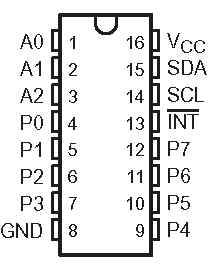
Hitachi HD44780 based 16x2 character LCD are very cheap and widely available, and is a essential part for any  projects that displays information. Using the I2C bus on Raspberry Pi ,PCF8574 IC, and Python characters/strings can be displayed on the LCD. The PCF8574 is an general purpose bidirectional 8 bit I/O port expander that uses the I2C protocol.


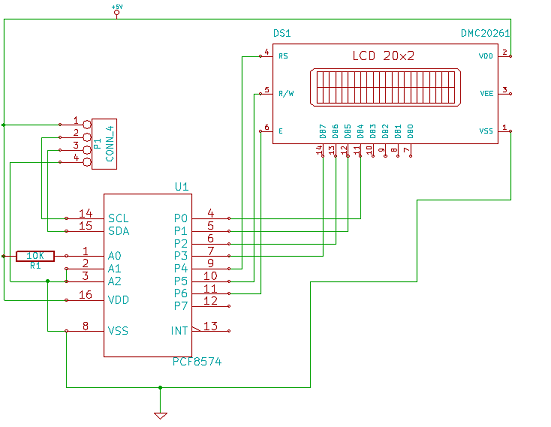
The LCD(HD44780) is connected in 4 bit mode as follows to the PCF8574:-


              P0 - D4
              P1 - D5
              P2 - D6
              P3 - D7
              P4 - RS
              P5 - R/W
              P6 - E

Port A0 is connected to VCC(5V) with a 10k resistor so that it will be addressed at 0x21.


Coming to the software part, Python is used to drive the logic.I have written a simple library to communicate with the LCD using the I2C bus.For this code to work python-smbus package must be installed(sudo apt-get install python-smbus).Save the below code as pylcdlib.py.
import smbus
from time import *
# General i2c device class so that other devices can be added easily
class i2c_dev:
 def __init__(self, addr, port):
  self.addr = addr
  self.bus = smbus.SMBus(port)
 def write(self, byte):
  self.bus.write_byte(self.addr, byte)
 def read(self):
  return self.bus.read_byte(self.addr)
 def read_nbytes_data(self, data, n): # For sequential reads > 1 byte
  return self.bus.read_i2c_block_data(self.addr, data, n)
class lcd:
 #initializes objects and lcd
 def __init__(self, addr, port):
  self.lcd_device = i2c_device(addr, port)
  self.lcd_device.write(0x03)
  self.lcd_strobe()
  sleep(0.0005)
  self.lcd_strobe()
  sleep(0.0005)
  self.lcd_strobe()
  sleep(0.0005)
  self.lcd_device.write(0x02)
  self.lcd_strobe()
  sleep(0.0005)
  self.lcd_write(0x28)
  self.lcd_write(0x08)
  self.lcd_write(0x01)
  self.lcd_write(0x06)
  self.lcd_write(0x0C)
  self.lcd_write(0x0F)
 # clocks EN to latch command
 def lcd_strobe(self):
  self.lcd_device.write((self.lcd_device.read() | 0x40))
  self.lcd_device.write((self.lcd_device.read() & 0xbF))
 # write a command to lcd
 def lcd_write(self, cmd):
  self.lcd_device.write((cmd >> 4))
  hi= self.lcd_device.read()
  self.lcd_strobe()
  self.lcd_device.write((cmd & 0x0F))
  lo= self.lcd_device.read()
  self.lcd_strobe()
  self.lcd_device.write(0x0)
  print 'cmd',cmd,hi,lo
 # write a character to lcd (or character rom)
 def lcd_write_char(self, charvalue):
   print "char",charvalue
   self.lcd_device.write((0x10 | (charvalue >> 4)))
   self.lcd_strobe()
   self.lcd_device.write((0x10 | (charvalue & 0x0F)))
   self.lcd_strobe()
   self.lcd_device.write(0x0)
 # put char function
 def lcd_putc(self, char):
  self.lcd_write_char(ord(char))
 # put string function
 def lcd_puts(self, string, line):
  if line == 1:
   self.lcd_write(0x10)
  if line == 2:
   self.lcd_write(0xC0)
  if line == 3:
   self.lcd_write(0x94)
  if line == 4:
   self.lcd_write(0xD4)
  for char in string:
   self.lcd_putc(char)
 # clear lcd and set to home
 def lcd_clear(self):
  self.lcd_write(0x1)
  self.lcd_write(0x2)
 # add custom characters (0 - 7)
 def lcd_load_custon_chars(self, fontdata):
  self.lcd_device.bus.write(0x40);
  for char in fontdata:
   for line in char:
    self.lcd_write_char(line)
Main Program:-
import pylcdlib
lcd = pylcd2.lcd(0x21,0,2)
lcd.lcd_clear()
lcd.lcd_puts("Raspberry Pi",1) #display "Raspberry Pi" on line 1
lcd.lcd_puts("Hello World!",2) #display "Hello World!" on line 2
Read More »

Overclocking the Raspberry Pi


Raspberry Pi uses the Broadcom BCM2835 system-on-chip (SoC) processor which was originally developed to be used with applications that involved heavy graphics and multimedia handling. This led to the design of architecture that pairs a relatively weak and outdated CPU with a massively powerful graphics processor.The CPU instruction set is based on an outdated ARM v6  architecture.


Overclocking the Raspberry Pi is quite different from that of the desktop processors, where if you overclock it and crank up the voltage a few notch you can sustain a higher clock rate with increased power consumption.But the problem with Raspberry Pi is that it uses a mobile phone chip and over-volting can significantly lower the overall chip lifetime.


Even though, since launch Raspberry Pi supported over-volting and overclocking by modifying the "config.txt". The Raspberry Pi can be safely overclocked to 1 GHz without voiding the warranty. Over-volting  is not recommended as it will permanently set a fuse in your SoC and void your warranty.


The latest version of the Raspbian operating system has inbuilt overclock method built into it.With the help of cpufreq driver it offers a “turbo mode”, which can dynamically overclock and over-volt the chip without voiding your warranty.To overclock enter "sudo raspi-config"  in Terminal. Select "overclock" and reboot the system. This will enables dynamic overclocking. If your Raspberry Pi gets too hot(85°C) it will automatically drop back down to 700MHz.


In case the Pi fails to boot due to higher clock, hold the shift key to disable the overclock for that boot session. Link for default clock: http://elinux.org/RPi_config.txt#Overclocking_configuration. Also make sure that you have a decent quality power supply capable of handling the extra load due to overclocking.


Read More »

Raspberry Pi temperature sensor using TMP102

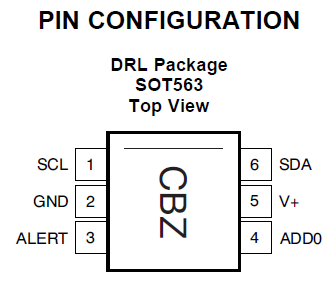
The TMP102 is an I2C temperature sensor from Texas Instruments.It's a perfect sensor for Raspberry Pi as it lacks any onboard ADC and TMP102 eliminates the requirement for analyzing the analog signals.When compared with the analog sensors TMP102 is very accurate and capable of measuring 0.0625ºC changes between -25°C and +85°C.


If you have more than one device on the I2C bus you can modify the address of the sensor using the address pin (ADD0).The sensor's address will be 72(0×48 in hex) when the address pin is grounded.It will be set to 73 (0×49 in hex) if the address pin is tied to VCC.

Pi GPI0        Function
---------------------------
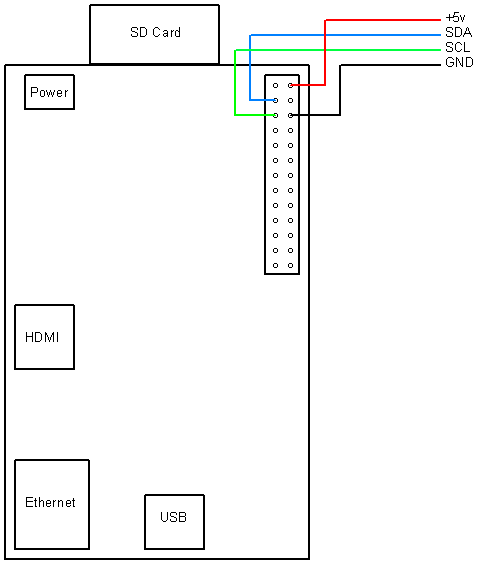
Pin 2            SDA
Pin 3            SCL
Pin 26          5V    

Make sure your system has the latest version of Linux 3.2 kernel and a proper I2C driver.Also you will be requiring two utilities:-
1) "lm-sensors" package, enter "apt-get install lm-sensors"
2) "I2C tools" package, enter "apt-get install i2c-tools"

After installation we can now use the modprobe i2c-tools.Run "i2cdetect" to check whether TMP102 is connected.

root@raspberrypi:~# i2cdetect -y 0

     0  1  2  3  4  5  6  7  8  9  a  b  c  d  e  f
00:          -- -- -- -- -- -- -- -- -- -- -- -- --
10: -- -- -- -- -- -- -- -- -- -- -- -- -- -- -- --
20: -- -- -- -- -- -- -- -- -- -- -- -- -- -- -- --
30: -- -- -- -- -- -- -- -- -- -- -- -- -- -- -- --
40: -- -- -- -- -- -- -- -- 48 -- -- -- -- -- -- --
50: -- -- -- -- -- -- -- -- -- -- -- -- -- -- -- --
60: -- -- -- -- -- -- -- -- -- -- -- -- -- -- -- --
70: -- -- -- -- -- -- -- --


As we have received the address from i2cdetect, the system has to be updated to get new drivers.

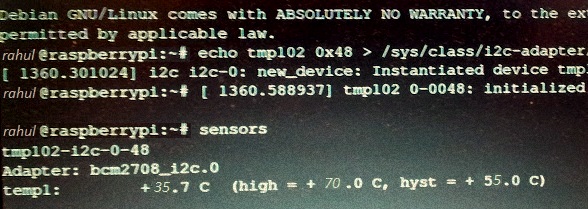
rahul@raspberrypi:~# echo tmp102 0x48 > /sys/class/i2c-adapter/i2c-0/new_device

Run the "sensors" command to get the temperature:-

rahul@raspberrypi:~# sensors
tmp102-i2c-0-48
Adapter: bcm2708_i2c.0
temp1:        +35.7°C  (high = +70.0°C, hyst = +55.0°C)


Read More »

Safely Shutting Down / Rebooting your Raspberry Pi


Well the most easiest way to shut down any computer is by pulling the plug or to switch it off directly. As with most of the PCs they can be switched off forcibly even when the system has crashed by holding the power switch for 3 secs. But this method isn't quite healthy for your system as it can damage the HDD or BIOS. For the Raspberry Pi, it can cause problems or corrupt the SD card.

So now let’s talk about how to shut down your Raspberry Pi when it hasn't frozen.

sudo shutdown -h now (or sudo halt)  [-h means halt the system] [now means to shutdown immediately]

You can also use the shorthand's:- `halt` and `reboot`.


Remember that you will need sudo privileges to  use shutdown (or halt)

When the shutdown command is entered it sends out a message to all logged in users
“The system is going down for system halt NOW!”
If you want to reebot your system simply replace the -h with -r 
sudo shutdown -r now (or sudo reboot) [-r means reboot the system] [now means to shutdown immediately]

Now for cases when your system is not responding or frozen,ssh comes in handy.By using a ssh client on another computer within the same network start an Xterm console window and enter the given commands..
sudo shutdown -h now (or sudo halt) OR
sudo shutdown -r now (or sudo reboot)
Your ssh session will terminate as the system is shutting down.
Read More »

Preparing your SD card for Raspberry Pi


As with all computers, your Raspberry Pi requires a boot-loader and a suitable Operating System to boot. Some Raspberry Pi's comes with  pre-installed SD card, but if you didn't receive one you will need to prepare your own.

You can use the BerryBoot installer if your Pi is connected to the Internet.A small zip file containing the BerryBoot system files is required to be extracted to an empty SD card .Then boot up your Pi with the SD card inserted  and follow the on-screen prompts to complete the installation. BerryBoot allows you to install more than one Operating System.

To prepare your SD card you have to download the SD image (the data you will write to the card) from a mirror or a torrent . It is recommended that you verify the image with the SHA-1 checksum provided in the download page. After successfully downloading the image extract the image file to a folder of your choice.Now insert the SD card and note the drive letter assigned.Format the SD card to avoid any troubles.You will need an utility (Win32ImageWriter) to make your SD card bootable. Locate the image file that you have extracted and select the drive letter in device box of Win32DiskImager .


Then you need to hit on 'Write' followed by ‘Yes’ when confirmation box appears . The burn process takes around 3 minutes and upon completion you will get a pop up ‘Write Successful’.  Now remove the SD card from your computer put it in your Raspberry Pi .You can expand the partitions using configure script to use all of the SD card if you have used SD card of capacity greater than 4 G.B.


Read More »