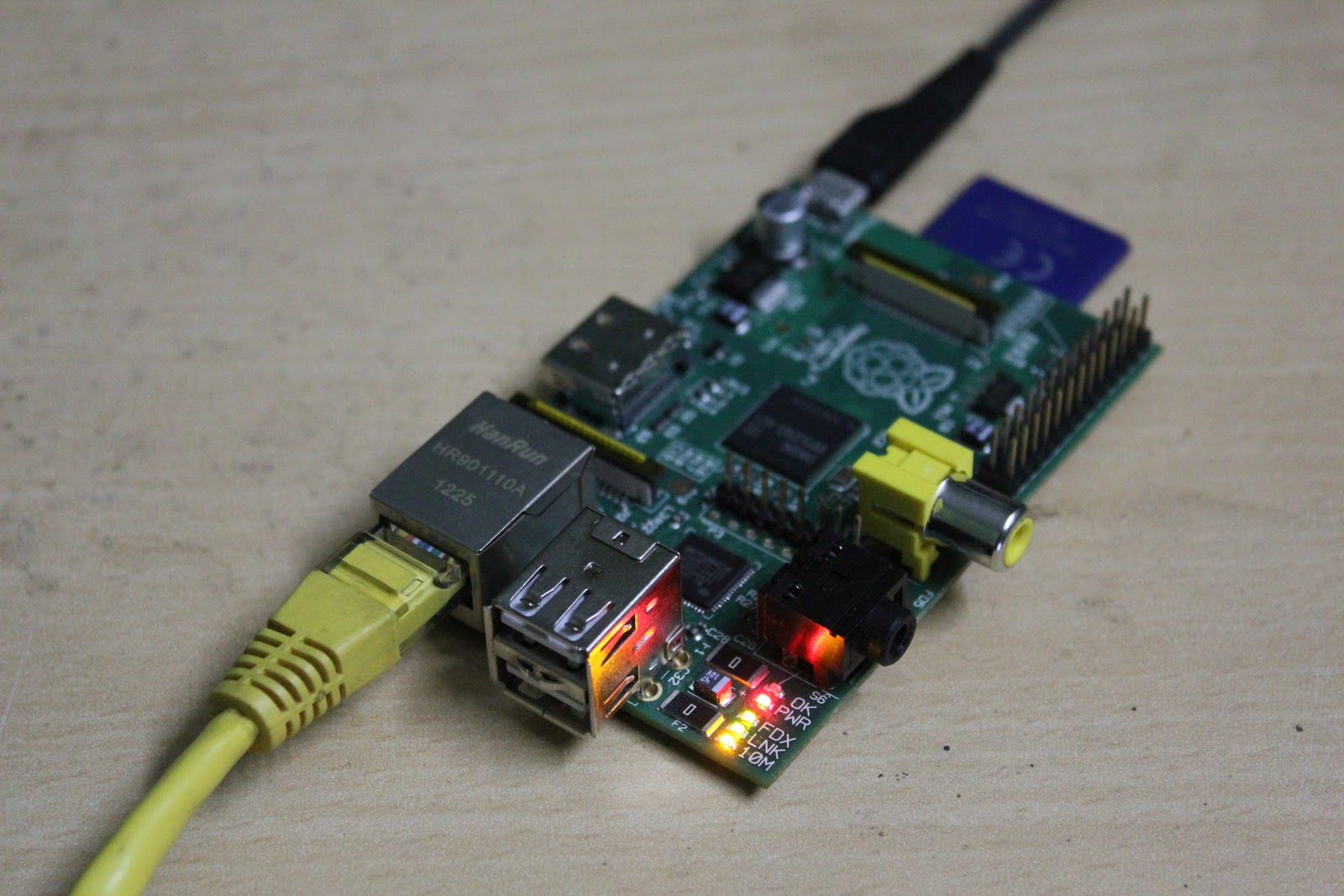
Running Pi Headless - with GUI part3


In this tutorial, I will demonstrate how to use the pi with remote GUI. It involves the following steps given below:-

1. Install VNC server on pi:

$ sudo apt-get install tightvncserver


2. Setup VNC client on remote system:

$ sudo apt-get install xtightvncviewer

3. Start VNC server on pi:

$ /user/bin/tightvncserver

4. Open VNC viewer on remote system:

$ xvncviewer 192.168.1.5:1


5. Kill VNC server

$ vncserver -kill :1


Download notes


Read More »

Running Pi headless - SSH tunneling part2

In this tutorial, I will demonstrate the following:-


1. Login through ssh
2. Changing pi's password
3. Navigating  through file-system
4. Copying files on network
5. Shutdown, Reboot pi
6. Writing, compiling a C program


Download Notes


Read More »

Running Pi headless - SSH tunneling part1


Pi normally needs hardware support like keyboard, mouse, display( HDMI compatible monitors). But we can run pi without these hardware too, using another PC by SSH tunneling. Before getting started, we need to install ssh client in the system from which we are tunneling in to the pi. In Ubuntu (or other linux distros), we install ssh client as follows:

$ sudo apt-get install ssh
$ sudo apt-get install openssh-client


Default login for pi running Wheezy:


usrname: pi
passwd: raspberry

Follow the video below which explains what is SSH and how to log in to pi by SSH tunneling step by step:


Dowload notes/hints


Read More »

Arduino vs Raspberry Pi

difference between arduino and raspberry pi
Ever since the Raspberry Pi was announced, it has been a topic of much debate online.Starting from profoundly diverse naming plans- masculine Italian name vs sweet fruit pie- Arduino and Raspberry Pi boards are significantly different in a lot of things. For one Arduino is an Open Source single-board micro-controller,  while Raspberry Pi is a single-board computer.

Ask any electronics enthusiastic and he will tell you why it is preferable to get the Arduino if this is your first time venturing into the world of embedded systems.On the other hand, if you have already dipped your toes in this field you could go ahead with the Raspberry Pi.

The table compares the two boards. It should help you make a good decision if you are new to this field.

Arduino
Raspberry Pi
Extremely simple to get working.
Less simpler to get working
A typical embedded system with easy-to-develop software.
Fully fledged computer running Linux.
Support is available virtually everywhere.
Limited support is available at present but should increase over time.
Perfect for controlling hardware(robotics).
Features an extremely powerful GPU and can handle HD content.
Umpteen, different  kits and shield’s are available.
Very few kits are available presently.
Low power consumption(<0.5 W), capable of even running micro amps with very low clock.
Power consumption(~3.5 W) is comparatively higher than Arduino.

Verdict: While the Raspberry Pi is a great high-performance option, Arduino is a good general-purpose board.
Read More »

Using GPIO on Raspberry Pi to blink an LED

One of the few things that separates the Pi from other SBC (Single Board Computer)  is the ability to use the GPIO (General Purpose Input/Output) pins which can be set as HIGH or LOW to control any external devices. All you need is a female to male jumper wire to get started. Here I have used a HDD IDE connector to get the job done.

In this post pin 9 is used for GND and pin 11 for GPIO17. The LED was connected using a 470 ohm register in series with pin 9 and 11 to limit the current.

GPIO of raspberry pi
Software Implementation:-

The fastest way to get started is to use python which comes pre-installed with all images. Download the RPi.GPIO library and copy the gz tar ball to the RPi wheezy raspbian. Open the terminal and navigate to the extracted folder containing the RPi.GPIO library. Then type:  $ sudo python setup.py install to install the module. Imp: As the OS is multitasking  and not Real-time unlike Arduino there may be jitters depending on CPU priority.

Based on the library I have written a simple code to turn ON and turn OFF the LED after a delay of 1 sec (1000ms) each.The LED blinks 50 times.
import RPi.GPIO as GPIO
import time
# blinking function
def blink(pin):
        GPIO.output(pin,GPIO.HIGH)
        time.sleep(1)
        GPIO.output(pin,GPIO.LOW)
        time.sleep(1)
        return
# to use Raspberry Pi board pin numbers
GPIO.setmode(GPIO.BOARD)
# set up GPIO output channel
GPIO.setup(11, GPIO.OUT)
# blink GPIO17 50 times
for i in range(0,50):
        blink(11)
GPIO.cleanup() 

led blinking with raspberry pi           
Read More »

Bluetooth pairing on Raspberry Pi with smartphone


Follow the steps below to pair your Raspberry Pi with your smartphone:-

1. Load a new wheezy raspbian image on SD card via the MAC, from a terminal window enter:
sudo umount /dev/disk1s1
sudo dd bs=1m if=2012-09-18-wheezy-raspbian.img of=/dev/rdisk1
sudo umount /dev/disk1s1
2. Boot Raspbian, perform the initial configuration and increase the size of SD to maximum (4GB), & Reboot.
3. Perform a ssh login to Raspbian from MAC, username pi pw raspberry and enter commands:
su
(enter root password)
apt-get update
apt-get install -y bluetooth bluez-utils blueman
lsusb
/etc/init.d/bluetooth status
4. Enable tightvncserver  and remote connect to Raspbian to see its GUI.
5. From Raspbian's GUI select Preferences->Bluetooth Manager, a Bluetooth Devices window will pop up.
Click 'Search' on the Bluetooth Devices, go to the phone, turn on Bluetooth and enable discovery.
6. When Raspberry Pi detects the smartphone, click + on the Bluetooth Devices window. Click Setup, specify password 0000 on the Bluetooth Assistant window.
7. On the smartphone, enter 0000 to pair with Raspberry Pi, the phone should display "raspberry3-14" as a paired device.

setting up Bluetooth with raspberry pi


The Raspberry Pi Bluetooth name can be changed using : Adapter->Preferences and change the Friendly Name.
Read More »